Barcode Settings#
Barcode Global Operations#
Global Switch#
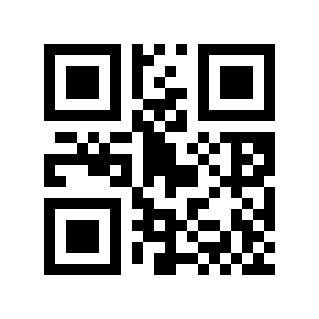
Disable# |
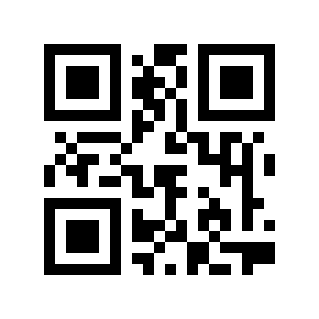
Enable# |
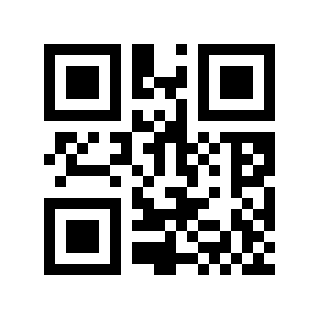
* Default# |
1D Code Global Switch#
Disable# |
Enable# |
* Default# |
QR Code Global Switch#
Disable# |
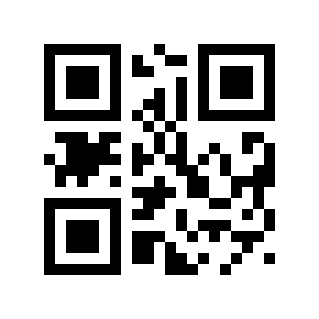
Enable# |
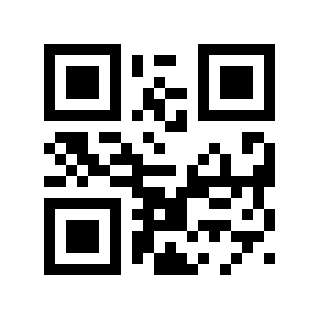
* Default# |
Barcode Security Level#
In order to solve the problem of possible code errors in barcode reading under extreme circumstances, 5 security levels are provided here. The higher the level, the worse the reading experience will be.
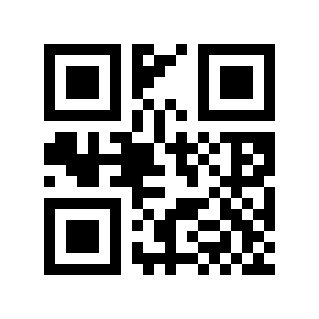
Level 0# |
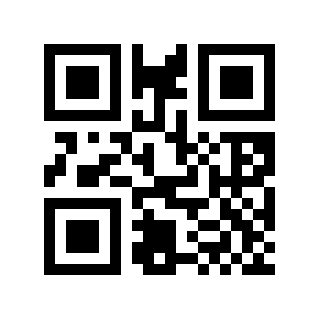
* Level 1# |
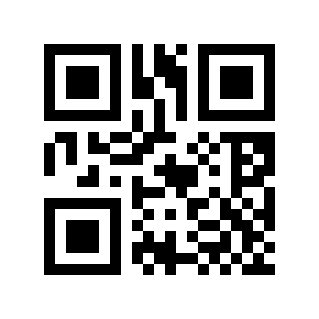
Level 2# |
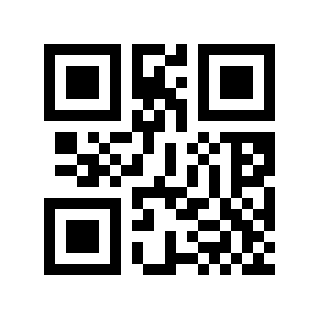
Level 3# |
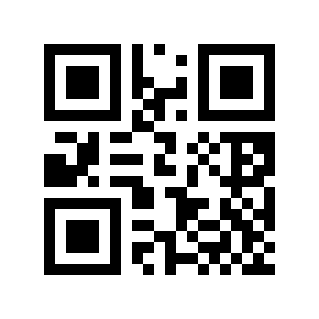
Level 4# |
Multi-code Identification#
In special application scenarios, multiple barcodes need to be read at the same time. Reading the following setting barcode will enable/disable multi-code reading.
Must Read Multiple Codes#
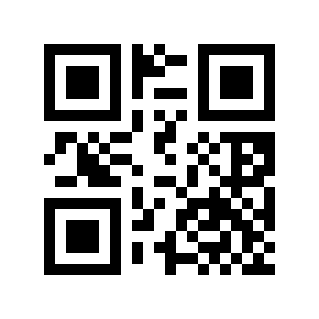
* Disable# |
Enable# |
Read Multiple Codes#
* 1# |
2# |
3# |
4# |
5# |
6# |
Global Invert Color Switch#
Read the following setting barcode to enable/disable barcode inversion reading.
Note
The global inverse color switch will have a greater impact on the performance of the reading equipment. Commonly used barcodes have separate inverse color switches. It is recommended to turn them on separately.
* Disable# |
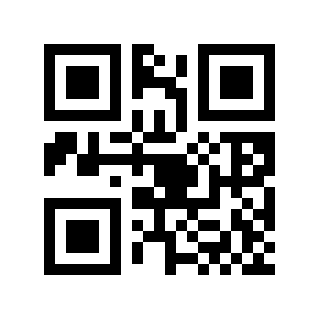
Enable# |
Partial Inverse Color Switch#
Code 128 Reverse Color Switch#
Read the following setting barcode to enable/disable reverse color reading of Code 128 barcodes. This setting is also valid for GS1-128
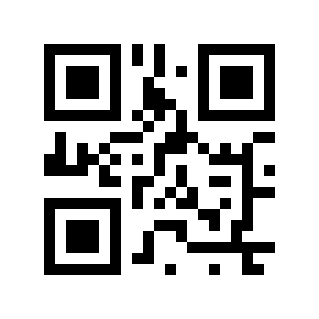
* Disable# |
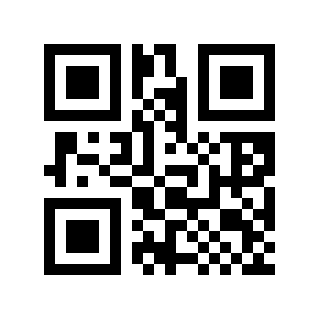
Enable# |
EAN/UPC Color Inversion Switch#
Read the following setting barcode to enable/disable reverse color reading of EAN/UPC barcodes.
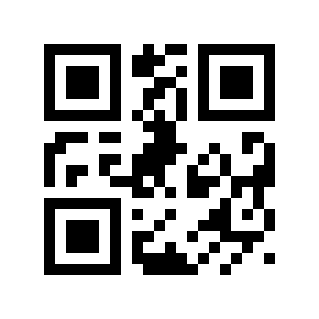
* Disable# |
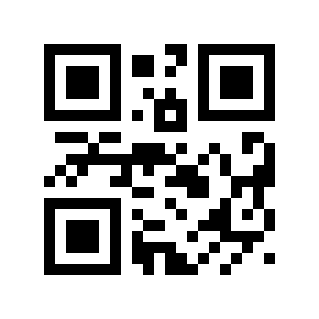
Enable# |
ITF25 Reverse Color Switch#
Read the following setting barcode to enable/disable reverse color reading of ITF25 barcodes.
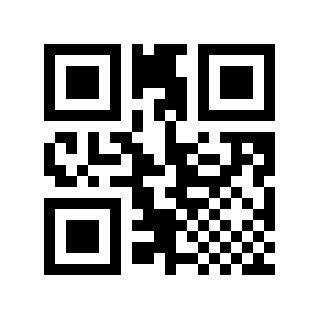
* Disable# |
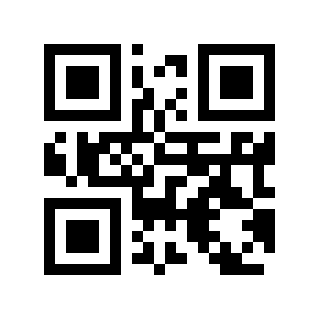
Enable# |
Code 39 Reverse Color Switch#
Read the following setting barcode to enable/disable reverse color reading of Code 39 barcodes.
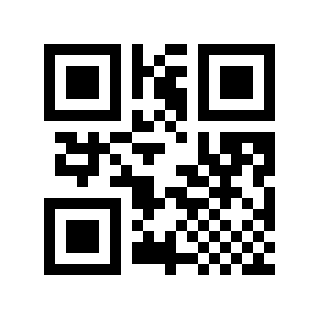
* Disable# |
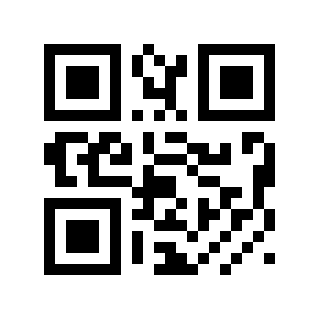
Enable# |
Codabar Reverse Color Switch#
Read the following setting barcode to enable/disable reverse color reading of Codabar barcodes.
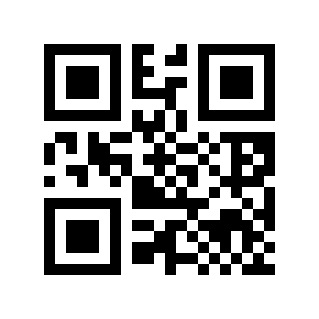
* Disable# |
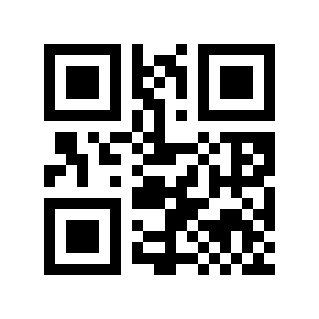
Enable# |
Code 93 Reverse Color Switch#
Read the following setting barcode to enable/disable reverse color reading of Code 93 barcodes.
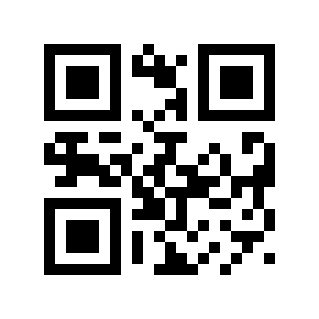
* Disable# |
Enable# |
Code 128#
Code 128 Switch#
Read the following setting barcode to enable/disable reading of Code 128 barcodes.
Disable# |
* Enable# |
Code 128 Minimum Length#
There are two methods for setting the minimum length of Code 128. The first method requires the user to generate a QR code, which tends to be set by more users and is more flexible. The second method can scan the setting barcode in this manual according to the steps.
Method one:
Code 128 Minimum length setting barcode content format: >!000012XX. XX is a setting variable, with a decimal range of 0-255.
For example: Code 128 minimum length is set to 2, then the setting barcode content is: >!0000122.
For example: Code 128 minimum length is set to 12, then the setting barcode content is: >!00001212.
Method two:
Scan the “Code 128 Minimum Length” setting barcode
Code 128 Minimum Length#
Scan the “Digital Setup Code”. For example, if the minimum length is 2 digits, scan 2; if the minimum length is 12 digits, scan 1,2
Scan the “OK” setting barcode to end the setting
Sure#
Code 128 Maximum Length#
There are two methods for setting the maximum length of Code 128. The first method requires the user to generate a QR code, which tends to be set by more users and is more flexible. The second method can scan the setting barcode in this manual according to the steps.
Method one:
Code 128 Maximum length setting barcode content format: >!000013XX. XX is a setting variable with a decimal range of 0-255.
For example: if the maximum length of Code 128 is set to 9, then the setting barcode content is: >!0000129.
For example: Code 128 maximum length is set to 20, then the setting barcode content is: >!00001220.
Method two:
Scan the “Code 128 Maximum Length” setting barcode
Code 128 Maximum Length#
Scan the “Digital Setup Code”. For example, if the maximum length is 9 digits, scan 9; if the maximum length is 20 digits, scan 2,0
Scan the “OK” setting barcode to end the setting
Sure#
Code 128 Security Level#
The higher the barcode security level, the lower the error rate, and the code reading effect will also be affected to a certain extent.
* Low# |
Medium# |
High# |
UCC/EAN-128/GS1-128#
GS1 128 Switch#
Read the following setting barcode to enable/disable reading of the GS1 128 barcode.
Disable# |
* Enable# |
GS1 128 Minimum Length#
There are two methods for setting the minimum length of GS1 128. The first method requires the user to generate a QR code, which tends to be set by more users and is more flexible. The second method can scan the setting barcode in this manual according to the steps.
Method one:
GS1 128 minimum length setting barcode content format: >!000022XX. XX is a setting variable with a decimal range of 0-255.
For example: if the minimum length of GS1 128 is set to 2, then the setting barcode content is: >!0000222.
For example: if the minimum length of GS1 128 is set to 12, then the setting barcode content is: >!00002212.
Method two:
Scan the “GS1 128 minimum length” setting barcode
GS1 128 Minimum Length#
Scan the “Digital Setup Code”. For example, if the minimum length is 2 digits, scan 2; if the minimum length is 12 digits, scan 1,2
Scan the “OK” setting barcode to end the setting
Sure#
GS1 128 Maximum Length#
There are two methods for setting the maximum length of GS1 128. Method one requires the user to generate a QR code, which tends to be set by more users and is more flexible. Method two can scan the setting barcode in this manual according to the steps.
Method one:
GS1 128 maximum length setting barcode content format: >!000023XX. XX is a setting variable with a decimal range of 0-255.
For example: if the maximum length of GS1 128 is set to 9, then the setting barcode content is: >!0000239.
For example: if the maximum length of GS1 128 is set to 20, then the setting barcode content is: >!00002320.
Method two:
Scan the “GS1 128 maximum length” setting barcode
GS1 128 Maximum Length#
Scan the “Digital Setup Code”. For example, if the maximum length is 9 digits, scan 9; if the maximum length is 20 digits, scan 2,0
Scan the “OK” setting barcode to end the setting
Sure#
EAN-8#
EAN-8 Switch#
Read the following setting barcode to enable/disable EAN-8 barcode reading.
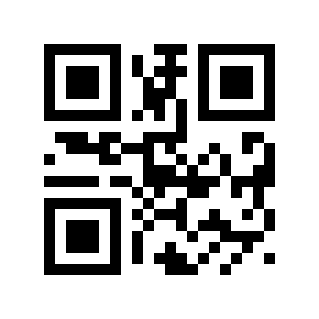
Disable# |
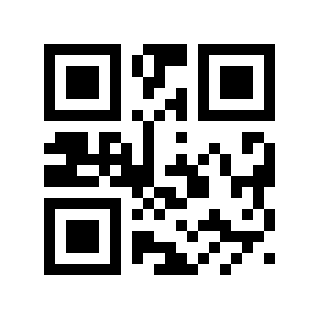
* Enable# |
EAN-8 Check Digit Transmission#
Read the following setting barcode to set whether EAN-8 transmits the check digit.
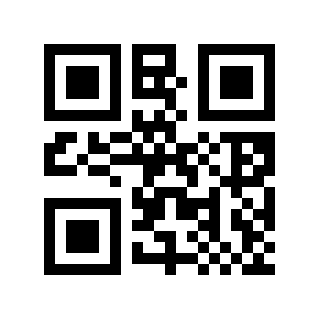
Disable# |
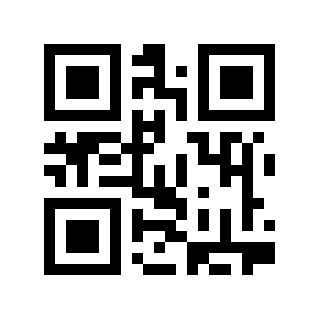
* Enable# |
EAN-8 Reads 2-digit Additional Code#
Read the following setting barcode to set whether EAN-8 can read the 2-digit additional code.
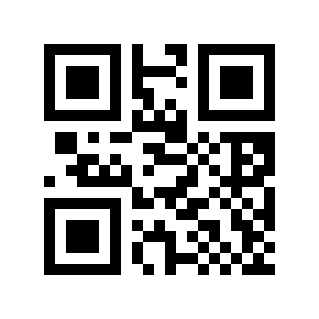
* Disable# |
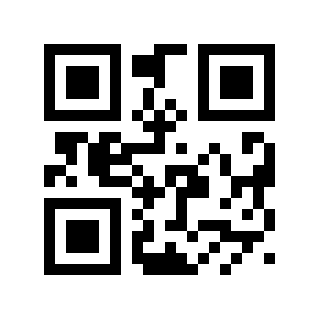
Enable# |
EAN-8 Reads 5-digit Additional Code#
Read the following setting barcode to set whether EAN-8 can read the 5-digit additional code.
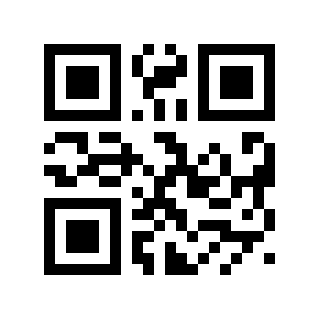
* Disable# |
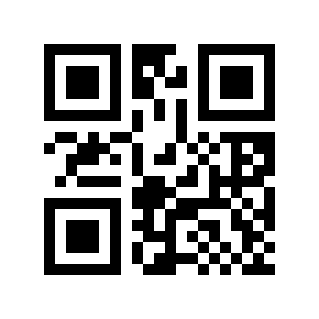
Enable# |
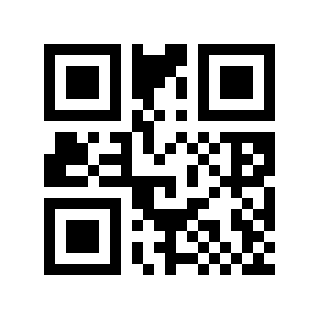
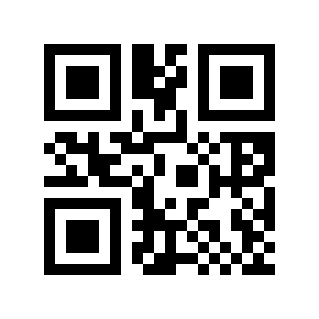
Read Only With Add-on Code EAN-8#
Read the following setting barcode to set whether to read only EAN-8 with additional code.
* Disable# |
Enable# |
EAN-13#
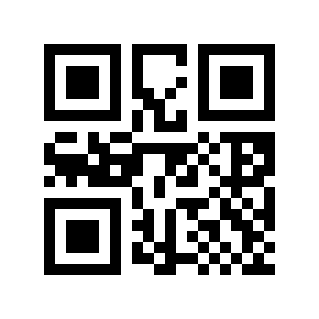
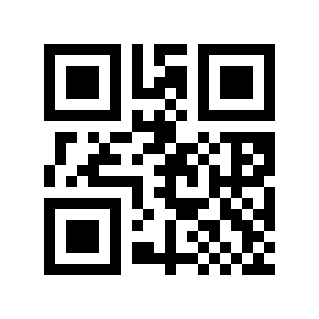
EAN-13 Switch#
Read the following setting barcode to enable/disable EAN-13 barcode reading.
Disable# |
* Enable# |
EAN-13 Check Digit Transmission#
Read the following setting barcode to set whether EAN-13 transmits check digits.
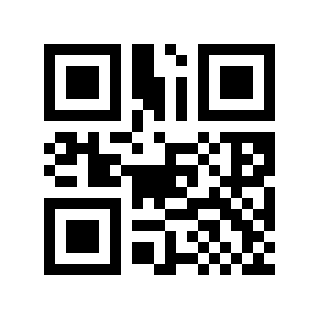
Disable# |
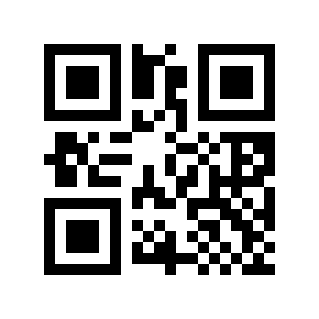
* Enable# |
EAN-13 Reads 2-digit Additional Code#
Read the following setting barcode to set whether EAN-13 can read the 2-digit additional code.
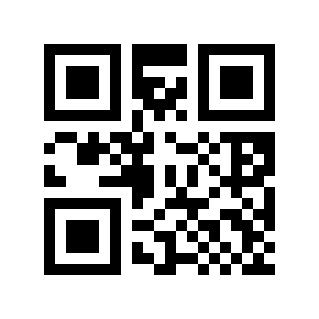
* Disable# |
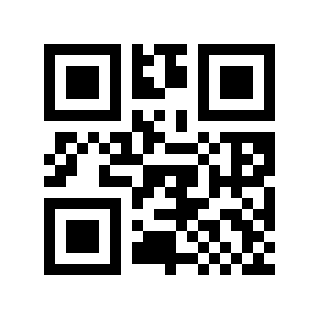
Enable# |
EAN-13 Reads 5-digit Additional Code#
Read the following setting barcode to set whether EAN-13 can read the 5-digit additional code.
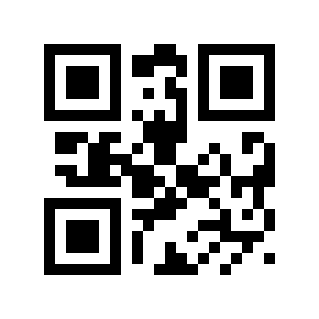
* Disable# |
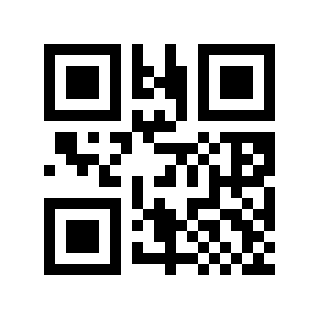
Enable# |
Read Only With Add-on Code EAN-13#
Read the following setting barcode to set whether to read only EAN-13 with additional code.
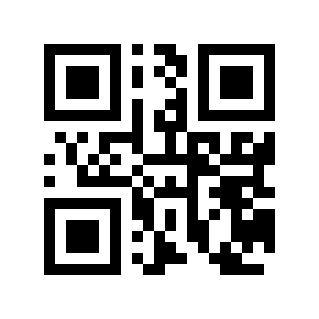
* Disable# |
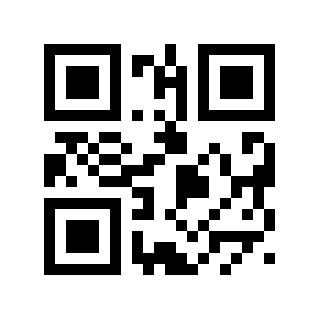
Enable# |
ISSN#
Read the following setting barcode to enable/disable ISSN barcode reading.
Note
Disable ISSN, ISSN will be treated as EAN-13
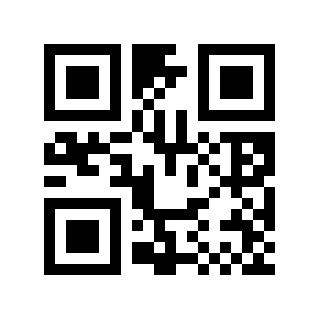
* Disable# |
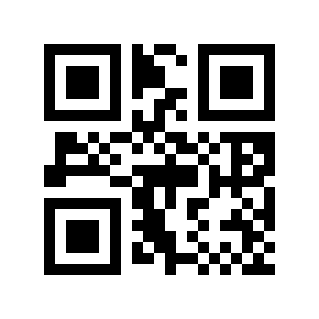
Enable# |
ISBN#
Read the following setting barcode to enable/disable ISBN barcode reading.
Note
Disable ISBN, ISBN will be treated as EAN-13
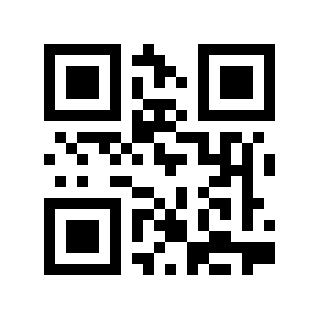
* Disable# |
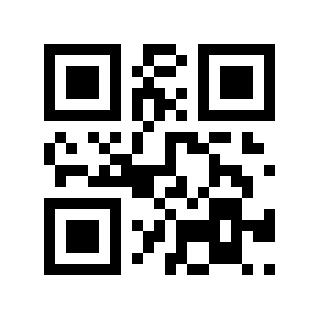
Enable# |
UPC-E#
UPC-E Switch#
Read the following setting barcode to enable/disable reading of UPC-E barcodes.
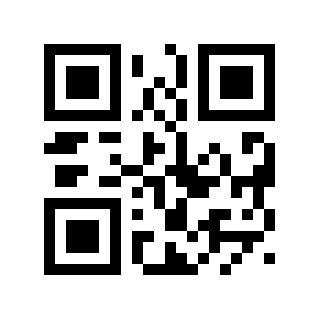
Disable# |
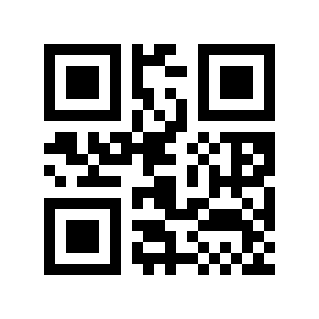
* Enable# |
UPC-E Check Digit Transmission#
Read the following setting barcode to set whether UPC-E transmits the check digit.
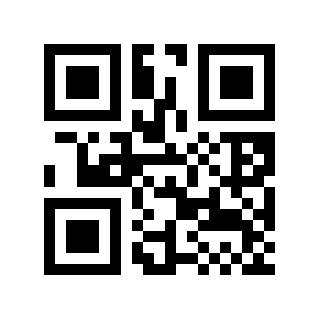
Disable# |
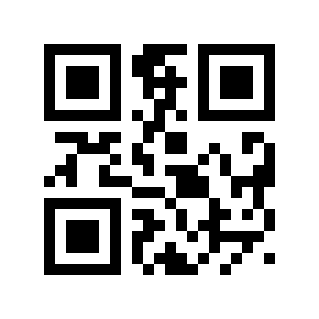
* Enable# |
UPC-E Reads 2-digit Additional Code#
Read the following setting barcode to set whether UPC-E can read the 2-digit additional code.
* Disable# |
Enable# |
UPC-E Reads 5-digit Additional Code#
Read the following setting barcode to set whether UPC-E can read the 5-digit additional code.
* Disable# |
Enable# |
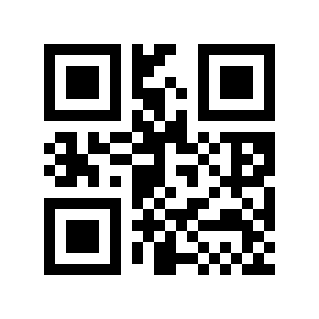
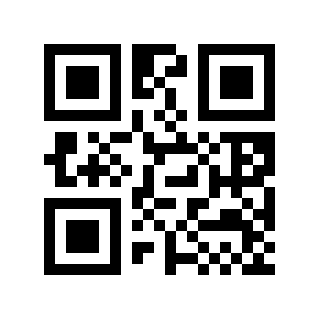
Read Only With Add-on Code UPC-E#
Read the following setting barcode to set whether to read only UPC-E with additional code.
* Disable# |
Enable# |
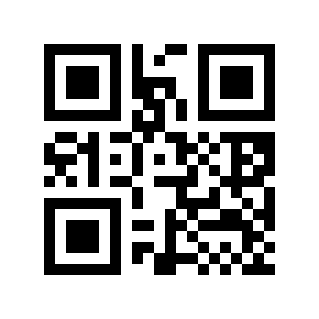
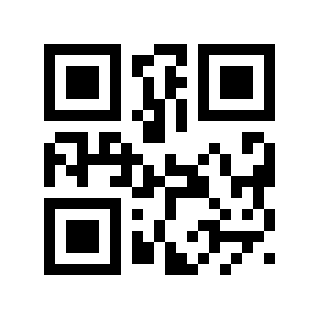
Transmission system character “0”#
Read the following setting barcode to set whether UPC-E transmits the system character “0”.
Disable# |
* Enable# |
UPC-E To UPC-A#
Read the following setting barcode to set whether to convert UPC-E to UPC-A.
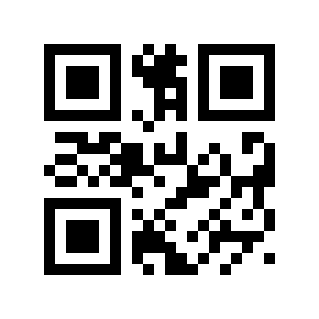
* Disable# |
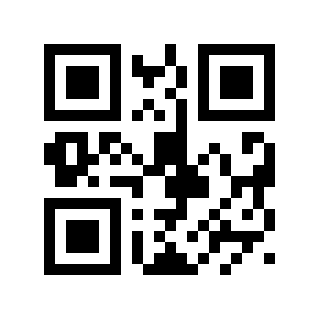
Enable# |
UPC-E1 Switch#
Read the following setting barcode to set whether to read UPC-E1.
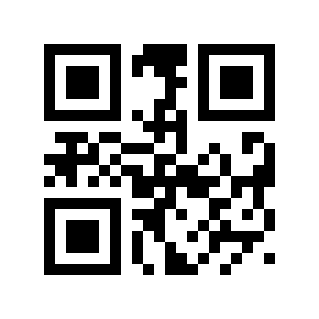
* Disable# |
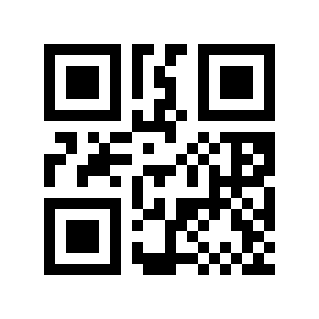
Enable# |
Transmit national character “0”#
Read the following setting barcode to set whether UPC-E transmits the national character “0”.
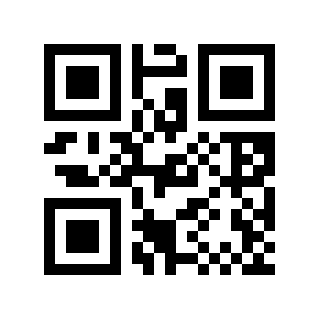
* Disable# |
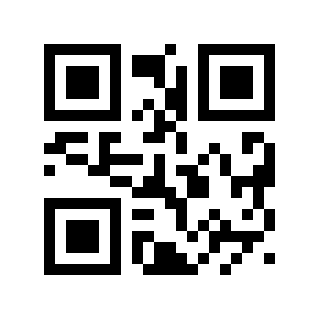
Enable# |
UPC-A#
UPC-A Switch#
Read the following setting barcode to enable/disable reading of UPC-A barcodes.
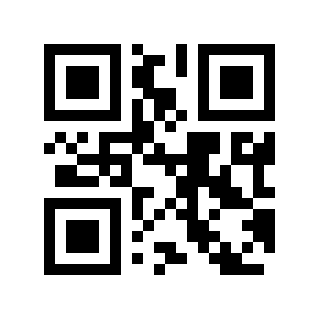
Disable# |
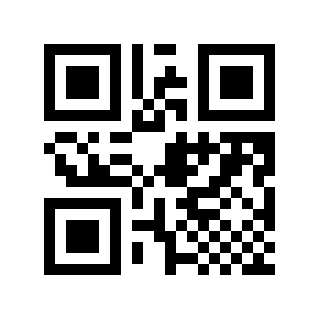
* Enable# |
UPC-A Check Digit Transmission#
Read the following setting barcode to set whether UPC-A transmits the check digit.
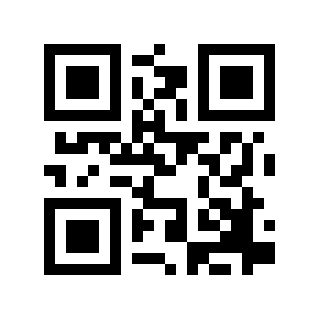
Disable# |
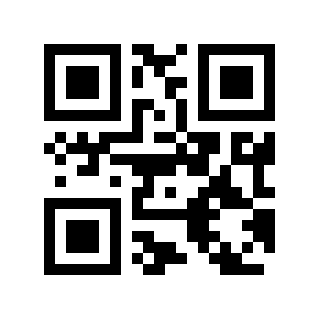
* Enable# |
UPC-A Reads 2-digit Additional Code#
Read the following setting barcode to set whether UPC-A can read the 2-digit additional code.
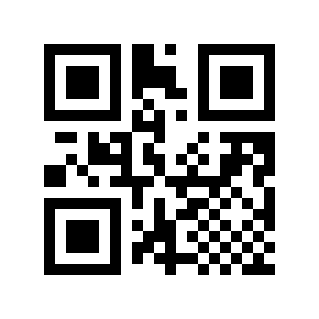
* Disable# |
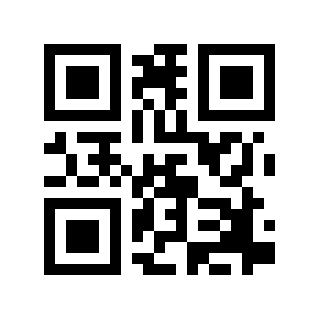
Enable# |
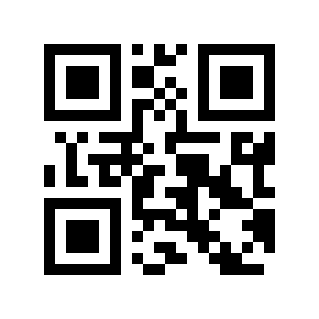
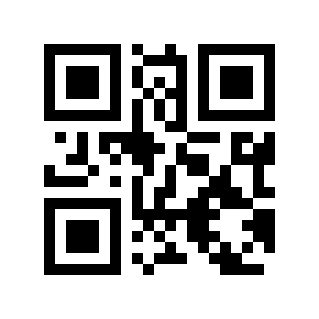
UPC-A Reads 5-digit Additional Code#
Read the following setting barcode to set whether UPC-A can read the 5-digit additional code.
* Disable# |
Enable# |
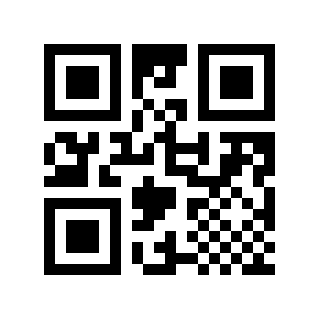
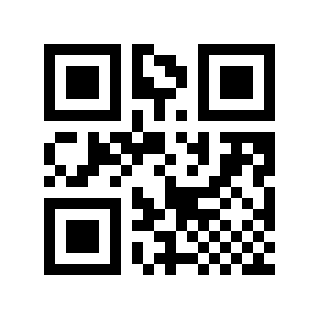
Read Only With Add-on Code UPC-A#
Read the following setting barcode to set whether to read only UPC-A with additional code.
* Disable# |
Enable# |
Transmission system character “0”#
Read the following setting barcode to set whether UPC-A transmits system characters.
Disable# |
* Enable# |
Transmit national character “0”#
Read the following setting barcode to set whether UPC-E transmits the national character “0”. (Whether UPC-A will be converted to EAN-13 will be set)
* Disable# |
Enable# |
ITF25#
ITF25 Switch#
Read the following setting barcode to enable/disable reading of ITF25 barcodes.
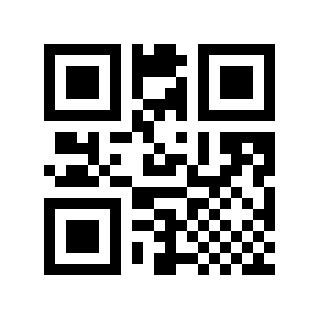
Disable# |
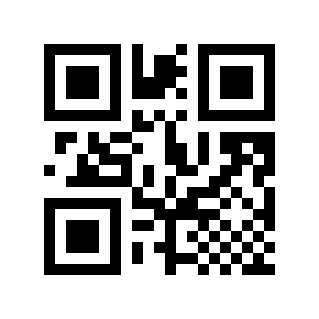
* Enable# |
ITF25 Check Digit Verification#
Read the following setting barcode to set whether the ITF25 check digit is verified.
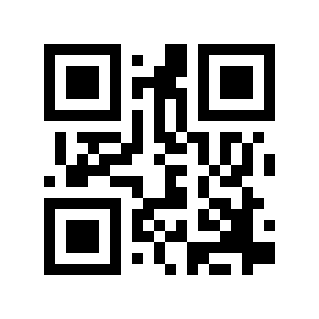
* Disable# |
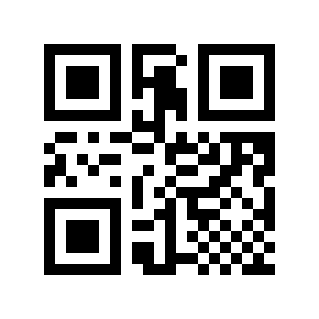
Enable# |
ITF25 Check Digit Transmission#
Read the following setting barcode to set whether the ITF25 check digit is transmitted.
Note
To enable transmission check digit, please enable the check digit verification function first.
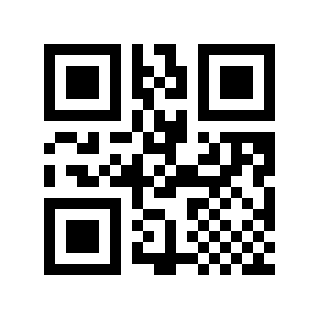
* Disable# |
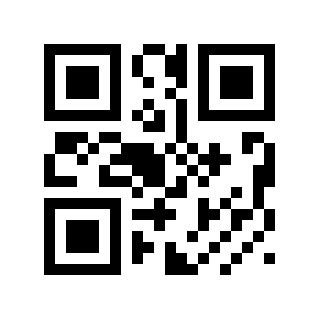
Enable# |
ITF25 Minimum Length#
There are two methods for setting the minimum length of ITF25. The first method requires the user to generate a QR code, which tends to be set by more users and is more flexible. The second method can scan the setting barcode in this manual according to the steps.
Method one:
ITF25 minimum length setting barcode content format: >!0000B3XX. XX is a setting variable with a decimal range of 0-255.
For example: if the minimum length of ITF25 is set to 2, then the setting barcode content is: >!0000B32.
For example: if the minimum length of ITF25 is set to 12, the setting barcode content is: >!0000B312.
Method two:
Scan the “ITF25 minimum length” setting barcode
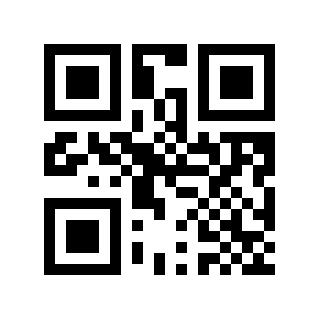
ITF25 Minimum Length#
Scan the “Digital Setup Code”. For example, if the minimum length is 2 digits, scan 2; if the minimum length is 12 digits, scan 1,2
Scan the “OK” setting barcode to end the setting
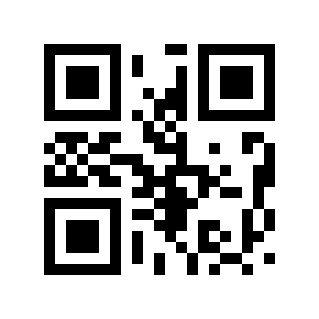
Sure#
ITF25 Maximum Length#
There are two methods for setting the maximum length of ITF25. Method one requires the user to generate a QR code, which tends to be set by more users and is more flexible. Method two can scan the setting barcode in this manual according to the steps.
Method one:
ITF25 maximum length setting barcode content format: >!0000B4XX. XX is a setting variable, with a decimal range of 0-255.
For example: if the maximum length of ITF25 is set to 9, then the setting barcode content is: >!0000B49.
For example: if the maximum length of ITF25 is set to 20, the setting barcode content is: >!0000B420.
Method two:
Scan the “ITF25 maximum length” setting barcode
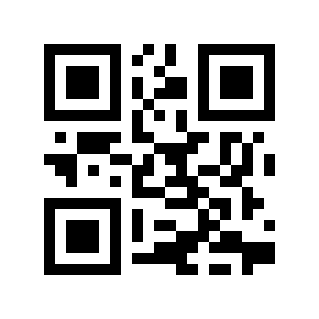
ITF25 Maximum Length#
Scan the “Digital Setup Code”. For example, if the maximum length is 9 digits, scan 9; if the maximum length is 20 digits, scan 2,0
Scan the “OK” setting barcode to end the setting
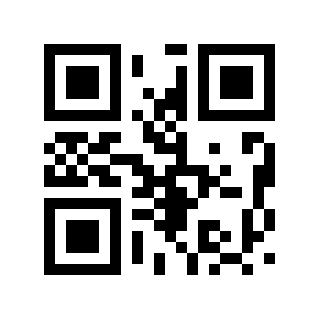
Sure#
Brazilian Government/Bank Code#
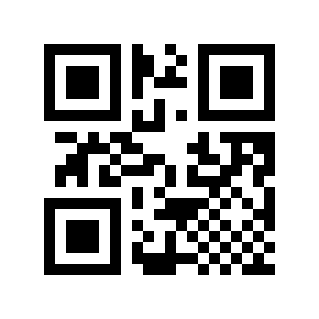
* Disable# |
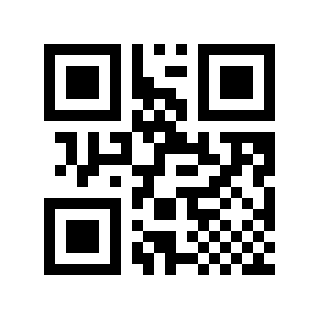
Enable# |
NEC25/COOP25#
NEC25 Switch#
Read the following setting barcode to enable/disable NEC25 barcode reading.
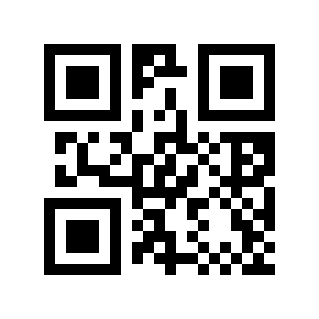
* Disable# |
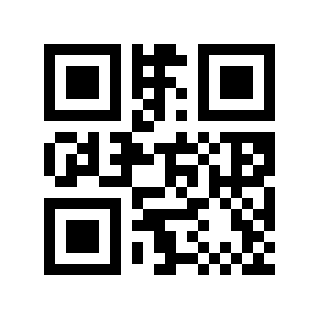
Enable# |
NEC25 Check Digit Verification#
Read the following setting barcode to set whether the NEC25 check digit is verified.
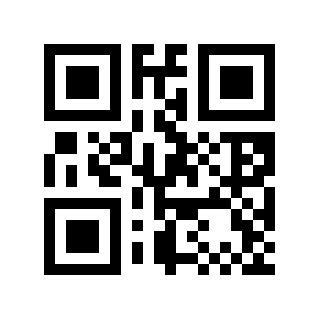
* Disable# |
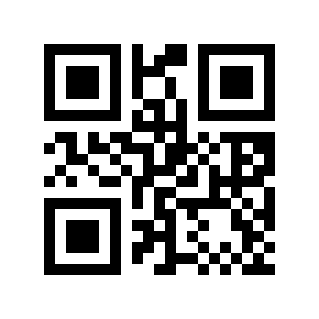
Enable# |
NEC25 Check Digit Transmission#
Read the following setting barcode to set whether the NEC25 check digit is transmitted.
Note
To enable transmission check digit, please enable the check digit verification function first.
* Disable# |
Enable# |
NEC25 Minimum Length#
There are two methods for setting the minimum length of NEC25. The first method requires the user to generate a QR code, which tends to be set by more users and is more flexible. The second method can scan the setting barcode in this manual according to the steps.
Method one:
NEC25 minimum length setting barcode content format: >!000103XX. XX is a setting variable with a decimal range of 0-255.
For example: if the minimum length of NEC25 is set to 2, then the setting barcode content is: >!0001032.
For example: if the minimum length of NEC25 is set to 12, the setting barcode content is: >!00010312.
Method two:
Scan the “NEC25 minimum length” setting barcode
NEC25 Minimum Length#
Scan the “Digital Setup Code”. For example, if the minimum length is 2 digits, scan 2; if the minimum length is 12 digits, scan 1,2
Scan the “OK” setting barcode to end the setting
Sure#
NEC25 Maximum Length#
There are two methods for setting the maximum length of NEC25. Method one requires the user to generate a QR code, which tends to be set by more users and is more flexible. Method two can scan the setting barcode in this manual according to the steps.
Method one:
NEC25 maximum length setting barcode content format: >!000104XX. XX is a setting variable with a decimal range of 0-255.
For example: if the maximum length of NEC25 is set to 9, the setting barcode content is: >!0001049.
For example: if the maximum length of NEC25 is set to 20, the setting barcode content is: >!00010420.
Method two:
Scan the “NEC25 maximum length” setting barcode
NEC25 Maximum Length#
Scan the “Digital Setup Code”. For example, if the maximum length is 9 digits, scan 9; if the maximum length is 20 digits, scan 2,0
Scan the “OK” setting barcode to end the setting
Sure#
MATRIX25#
MATRIX25 Switch#
Read the following setting barcode to enable/disable MATRIX25 barcode reading.
* Disable# |
Enable# |
MATRIX25 Check Digit Verification#
Read the following setting barcode to set whether the MATRIX25 check digit is verified.
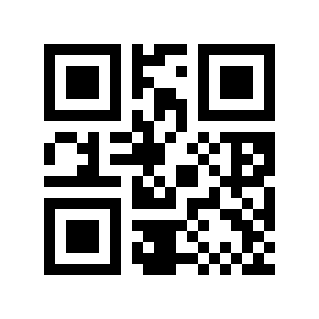
* Disable# |
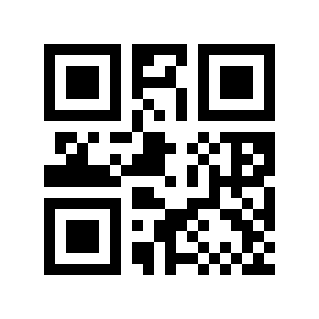
Enable# |
MATRIX25 Check Digit Transmission#
Read the following setting barcode to set whether the MATRIX25 check digit is transmitted.
Note
To enable transmission check digit, please enable the check digit verification function first.
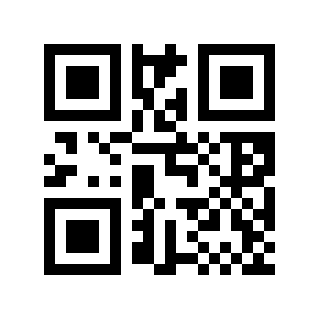
* Disable# |
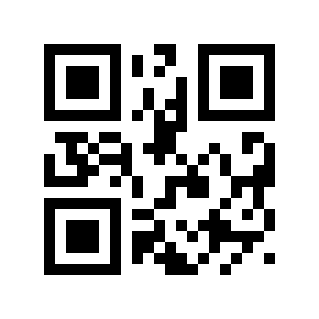
Enable# |
MATRIX25 Minimum Length#
There are two methods for setting the minimum length of MATRIX25. Method one requires the user to generate a QR code, which tends to be set by more users and is more flexible to use. Method two can scan the setting barcode in this manual according to the steps.
Method one:
MATRIX25 minimum length setting barcode content format: >!000113XX. XX is a setting variable, with a decimal range of 0-255.
For example: if the minimum length of MATRIX25 is set to 2, the setting barcode content is: >!0001132.
For example: if the minimum length of MATRIX25 is set to 12, the setting barcode content is: >!00011312.
Method two:
Scan the “MATRIX25 minimum length” setting barcode
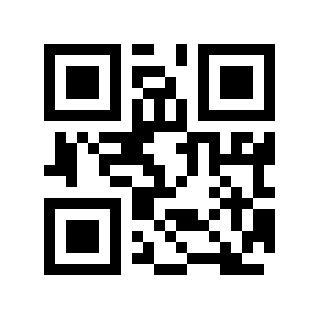
MATRIX25 Minimum Length#
Scan the “Digital Setup Code”. For example, if the minimum length is 2 digits, scan 2; if the minimum length is 12 digits, scan 1,2
Scan the “OK” setting barcode to end the setting
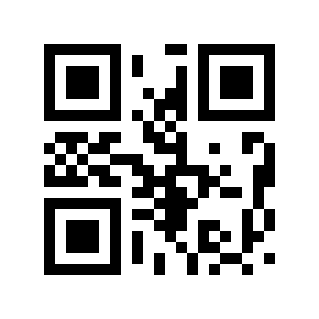
Sure#
MATRIX25 Maximum Length#
There are two methods for setting the maximum length of MATRIX25. Method one requires the user to generate a QR code, which tends to be set by more users and is more flexible. Method two can scan the setting barcode in this manual according to the steps.
Method one:
MATRIX25 maximum length setting barcode content format: >!000114XX. XX is a setting variable with a decimal range of 0-255.
For example: if the maximum length of MATRIX25 is set to 9, the setting barcode content is: >!0001149.
For example: if the maximum length of MATRIX25 is set to 20, the setting barcode content is: >!00011420.
Method two:
Scan the “MATRIX25 maximum length” setting barcode
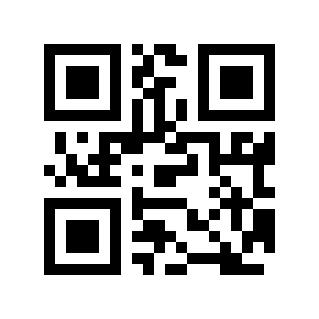
MATRIX25 Maximum Length#
Scan the “Digital Setup Code”. For example, if the maximum length is 9 digits, scan 9; if the maximum length is 20 digits, scan 2,0
Scan the “OK” setting barcode to end the setting
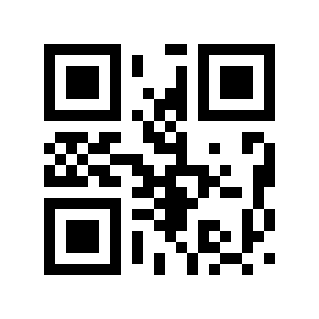
Sure#
IND25#
IND25 Switch#
Read the following setting barcode to enable/disable reading of IND25 barcodes.
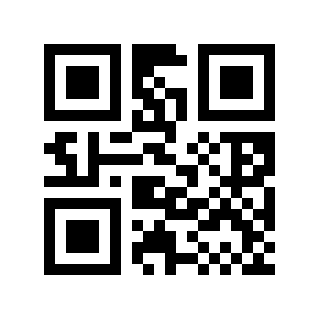
* Disable# |
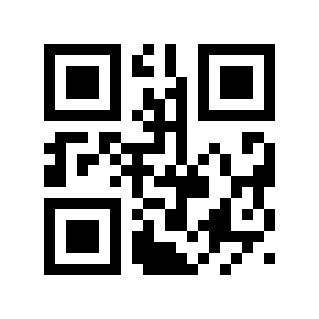
Enable# |
IND25 Minimum Length#
There are two methods for setting the minimum length of IND25. Method one requires the user to generate a QR code, which tends to be set by more users and is more flexible. Method two can scan the setting barcode in this manual according to the steps.
Method one:
IND25 minimum length setting barcode content format: >!000123XX. XX is a setting variable with a decimal range of 0-255.
For example: if the minimum length of IND25 is set to 2, the setting barcode content is: >!0001232.
For example: if the minimum length of IND25 is set to 12, the setting barcode content is: >!00012312.
Method two:
Scan the “IND25 minimum length” setting barcode
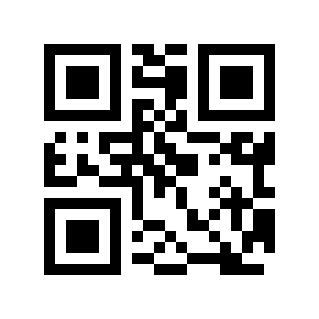
IND25 Minimum Length#
Scan the “Digital Setup Code”. For example, if the minimum length is 2 digits, scan 2; if the minimum length is 12 digits, scan 1,2
Scan the “OK” setting barcode to end the setting
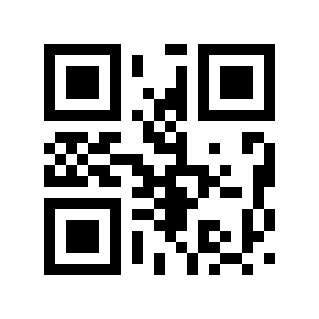
Sure#
IND25 Maximum Length#
There are two methods for setting the maximum length of IND25. Method one requires the user to generate a QR code, which tends to be set by more users and is more flexible to use. Method two can scan the setting barcode in this manual according to the steps.
Method one:
IND25 maximum length setting barcode content format: >!000124XX. XX is a setting variable, with a decimal range of 0-255.
For example: if the maximum length of IND25 is set to 9, the setting barcode content is: >!0001249.
For example: if the maximum length of IND25 is set to 20, the setting barcode content is: >!00012420.
Method two:
Scan the “IND25 maximum length” setting barcode
IND25 Maximum Length#
Scan the “Digital Setup Code”. For example, if the maximum length is 9 digits, scan 9; if the maximum length is 20 digits, scan 2,0
Scan the “OK” setting barcode to end the setting
Sure#
STD25#
STD25 Switch#
Read the following setting barcode to enable/disable STD25 barcode reading.
* Disable# |
Enable# |
STD25 Minimum Length#
There are two methods for setting the minimum length of STD25. The first method requires the user to generate a QR code, which tends to be set by more users and is more flexible. The second method can scan the setting barcode in this manual according to the steps.
Method one:
STD25 minimum length setting barcode content format: >!000133XX. XX is a setting variable with a decimal range of 0-255.
For example: if the minimum length of STD25 is set to 2, the setting barcode content is: >!0001332.
For example: if the minimum length of STD25 is set to 12, the setting barcode content is: >!00013312.
Method two:
Scan the “STD25 minimum length” setting barcode
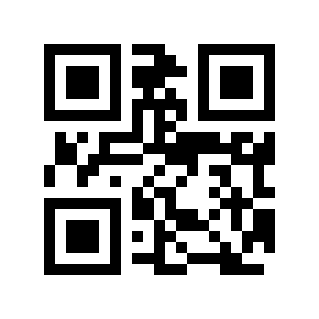
STD25 Minimum Length#
Scan the “Digital Setup Code”. For example, if the minimum length is 2 digits, scan 2; if the minimum length is 12 digits, scan 1,2
Scan the “OK” setting barcode to end the setting
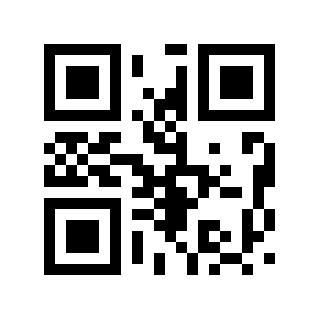
Sure#
STD25 Maximum Length#
There are two methods for setting the maximum length of STD25. The first method requires the user to generate a QR code, which tends to be set by more users and is more flexible. The second method can scan the setting barcode in this manual according to the steps.
Method one:
STD25 maximum length setting barcode content format: >!000134XX. XX is a setting variable with a decimal range of 0-255.
For example: if the maximum length of STD25 is set to 9, the setting barcode content is: >!0001349.
For example: if the maximum length of STD25 is set to 20, the setting barcode content is: >!00013420.
Method two:
Scan the “STD25 maximum length” setting barcode
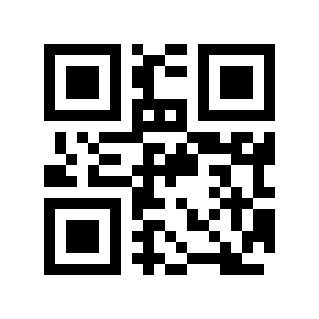
STD25 Maximum Length#
Scan the “Digital Setup Code”. For example, if the maximum length is 9 digits, scan 9; if the maximum length is 20 digits, scan 2,0
Scan the “OK” setting barcode to end the setting
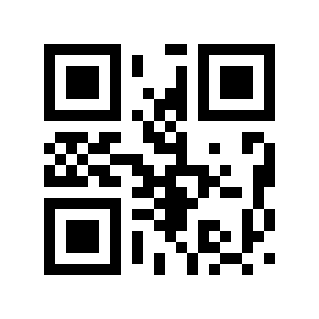
Sure#
Code 39#
Code 39 Switch#
Read the following setting barcode to enable/disable reading of Code 39 barcodes.
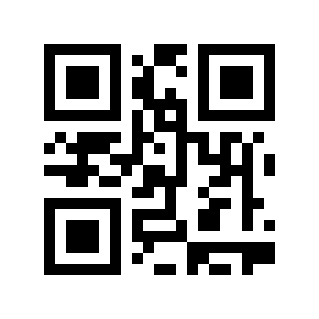
Disable# |
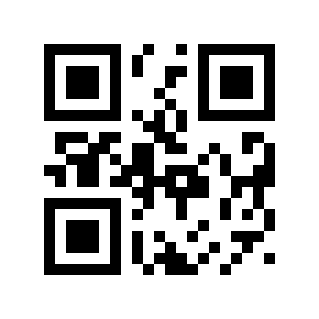
* Enable# |
Code 39 check digit verification#
Read the following setting barcode to set whether the Code 39 check digit is verified.
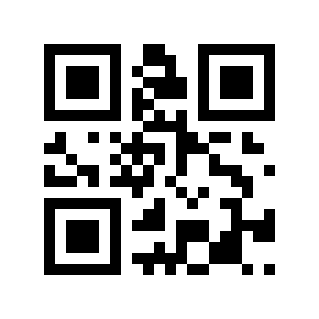
* Disable# |
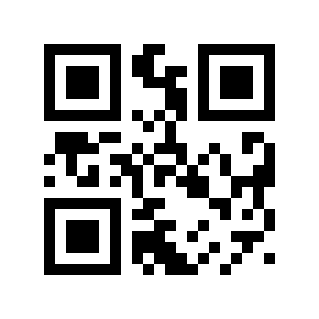
Enable# |
Code 39 Check Digit Transmission#
Read the following setting barcode to set whether the Code 39 check digit is transmitted.
Note
To enable transmission check digit, please enable the check digit verification function first.
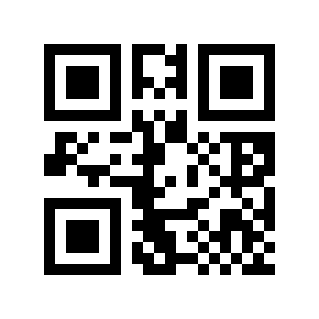
* Disable# |
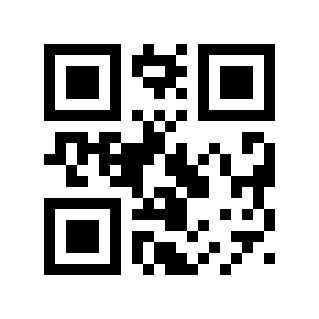
Enable# |
Code 39 Start Character/end Character Transmission#
Read the following setting barcode to set whether the Code 39 start character/end character is transmitted.
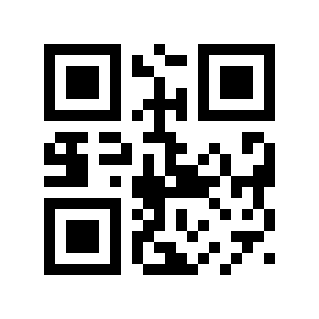
* Disable# |
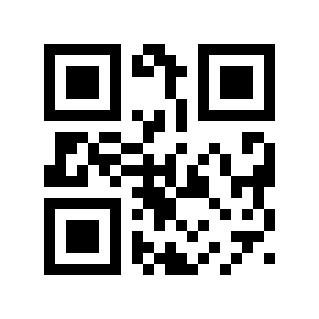
Enable# |
Code 39 FULL ASCII Switch#
Read the following setting barcode to enable/disable reading of Code 39 FULL ASCII barcodes.
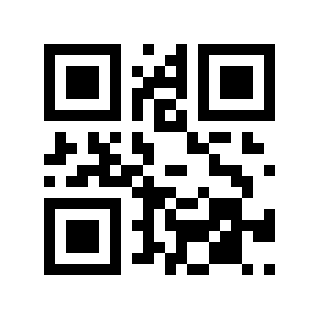
* Disable# |
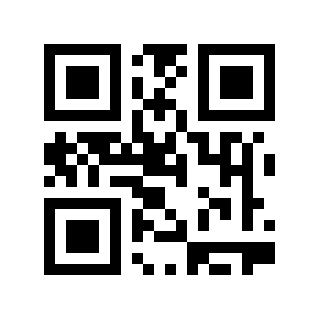
Enable# |
Code 39 Minimum Length#
There are two methods for setting the minimum length of Code 39. The first method requires the user to generate a QR code, which tends to be set by more users and is more flexible. The second method can scan the setting barcode in this manual according to the steps.
Method one:
Code 39 Minimum length setting barcode content format: >!000145XX. XX is a setting variable, with a decimal range of 0-255.
For example: if the minimum length of Code 39 is set to 2, the setting barcode content is: >!0001452.
For example: Code 39 minimum length is set to 12, then the setting barcode content is: >!00014512.
Method two:
Scan the “Code 39 Minimum Length” setting barcode
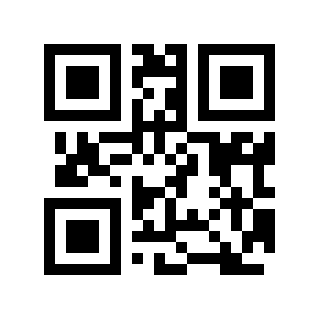
Code 39 Minimum Length#
Scan the “Digital Setup Code”. For example, if the minimum length is 2 digits, scan 2; if the minimum length is 12 digits, scan 1,2
Scan the “OK” setting barcode to end the setting
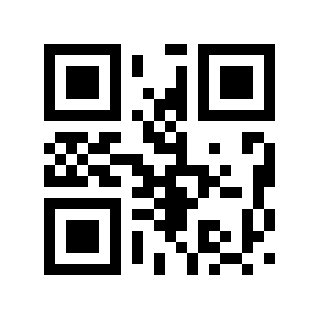
Sure#
Code 39 Maximum Length#
There are two methods for setting the maximum length of Code 39. Method one requires the user to generate a QR code, which tends to be set by more users and is more flexible. Method two can scan the setting barcode in this manual according to the steps.
Method one:
Code 39 Maximum length setting barcode content format: >!000146XX. XX is a setting variable, with a decimal range of 0-255.
For example: if the maximum length of Code 39 is set to 9, then the setting barcode content is: >!0001469.
For example: if the maximum length of Code 39 is set to 20, the setting barcode content is: >!00014620.
Method two:
Scan the “Code 39 Maximum Length” setting barcode
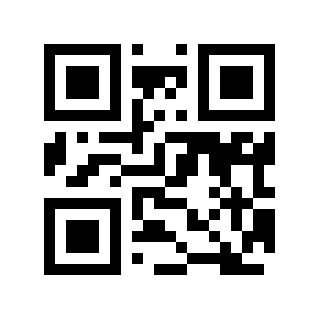
Code 39 Maximum Length#
Scan the “Digital Setup Code”. For example, if the maximum length is 9 digits, scan 9; if the maximum length is 20 digits, scan 2,0
Scan the “OK” setting barcode to end the setting
Sure#
Code 32 Switch#
Read the following setting barcode to enable/disable the setting of Code 39 to Code 32
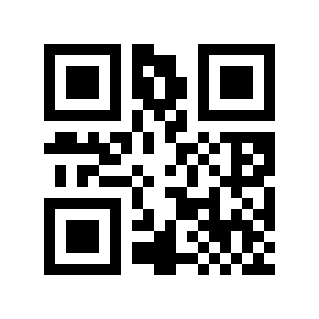
* Disable# |
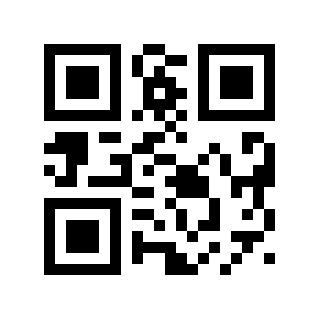
Enable# |
Code 32 prefix#
Read the following setting barcode to set whether the Code 32 prefix is transmitted.
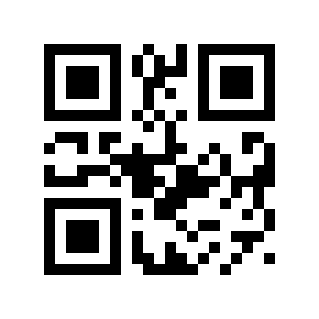
* Disable# |
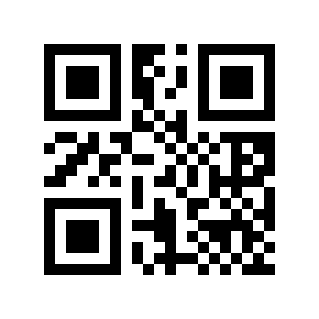
Enable# |
Code 32 Check Digit Verification#
Read the following setting barcode to set whether the Code 32 check digit is verified.
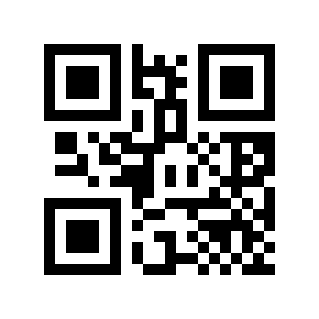
* Disable# |
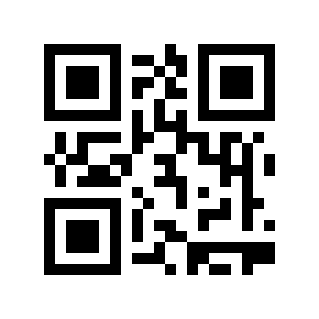
Enable# |
Code 32 Check Digit Transmission#
Read the following setting barcode to set whether the Code 32 check digit is transmitted.
Note
To enable transmission check digit, please enable the check digit verification function first.
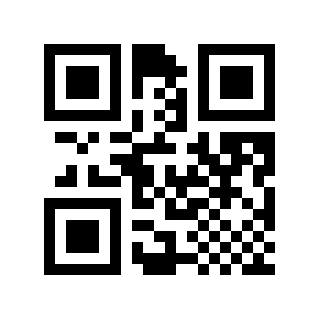
* Disable# |
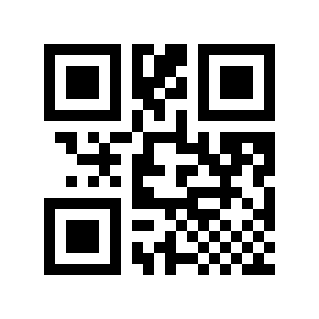
Enable# |
Codabar#
Codabar Switch#
Read the following setting barcode to enable/disable Codabar barcode reading.
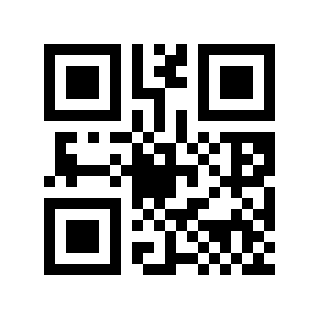
* Disable# |
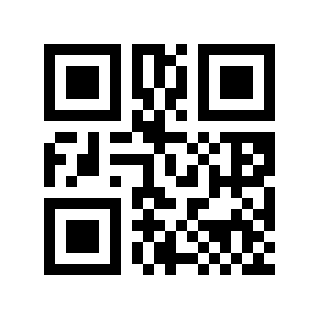
Enable# |
Codabar Check Digit Verification#
Read the following setting barcode to set whether the Codabar check digit is verified.
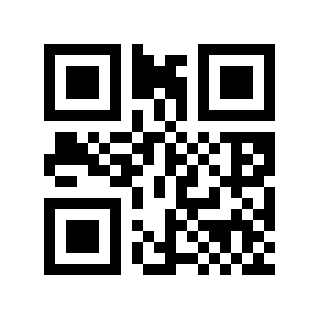
* Disable# |
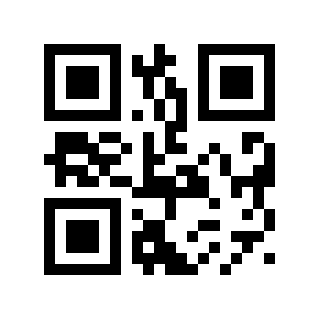
Enable# |
Codabar Check Digit Transmission#
Read the following setting barcode to set whether the Codabar check digit is transmitted.
Note
To enable transmission check digit, please enable the check digit verification function first.
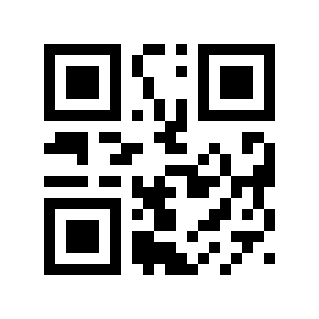
* Disable# |
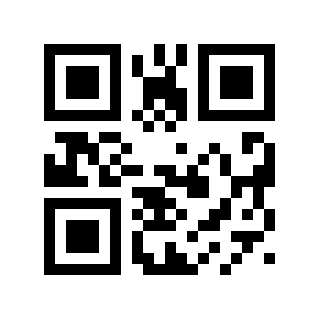
Enable# |
Codabar Start Character/end Character Transmission#
Read the following setting barcode to set whether the Codabar start character/end character is transmitted.
Disable# |
* Enable# |
Codabar Start Character/end Character Format#
Read the following setting barcode to set the Codabar start character/end character format.
* Ordinary ABCD Format# |
ABCD/TN*E Format# |
Codabar Start Character/end Character Case#
Read the following setting barcode to set whether the Codabar start character/end character is uppercase or lowercase.
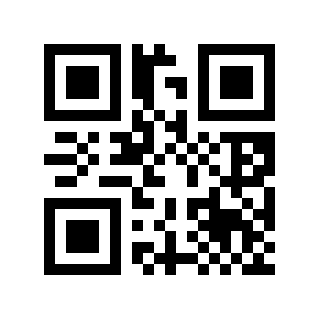
*uppercase# |
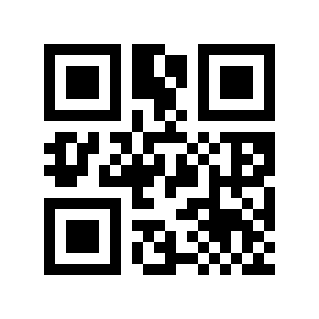
Lower Case# |
Codabar Minimum Length#
There are two methods for setting the minimum length of Codabar. The first method requires the user to generate a QR code, which tends to be set by more users and is more flexible. The second method can scan the setting barcode in this manual according to the steps.
Method one:
Codabar minimum length setting barcode content format: >!000156XX. XX is a setting variable, with a decimal range of 0-255.
For example: if the minimum length of Codabar is set to 2, the setting barcode content is: >!0001562.
For example: if the minimum length of Codabar is set to 12, the setting barcode content is: >!00015612.
Method two:
Scan the “Codabar Minimum Length” setting barcode
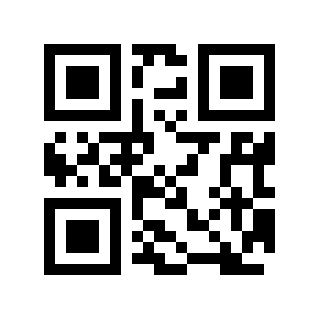
Codabar Minimum Length#
Scan the “Digital Setup Code”. For example, if the minimum length is 2 digits, scan 2; if the minimum length is 12 digits, scan 1,2
Scan the “OK” setting barcode to end the setting
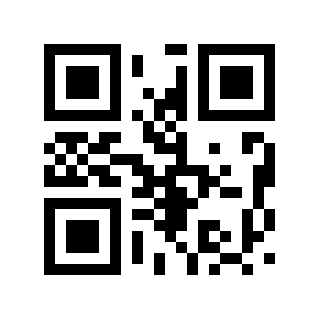
Sure#
Codabar Maximum Length#
There are two methods for setting the maximum length of Codabar. Method one requires the user to generate a QR code, which is more flexible for more users. Method two can scan the setting barcode in this manual according to the steps.
Method one:
Codabar maximum length setting barcode content format: >!000157XX. XX is a setting variable, with a decimal range of 0-255.
For example: if the maximum length of Codabar is set to 9, the setting barcode content is: >!0001579.
For example: if the maximum length of Codabar is set to 20, the setting barcode content is: >!00015720.
Method two:
Scan the “Codabar Maximum Length” setting barcode
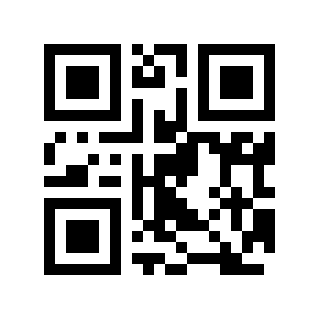
Codabar Maximum Length#
Scan the “Digital Setup Code”. For example, if the maximum length is 9 digits, scan 9; if the maximum length is 20 digits, scan 2,0
Scan the “OK” setting barcode to end the setting
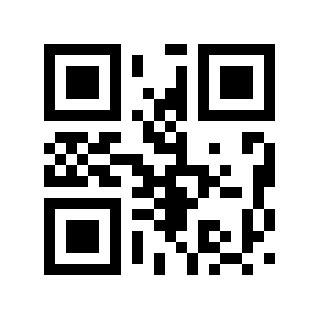
Sure#
Code 93#
Code 93 Switch#
Read the following setting barcode to enable/disable reading of Code 93 barcodes.
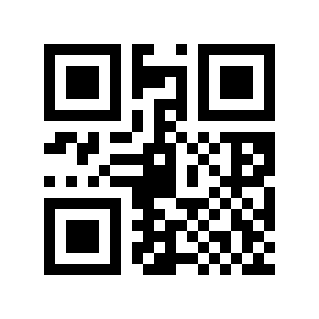
Disable# |
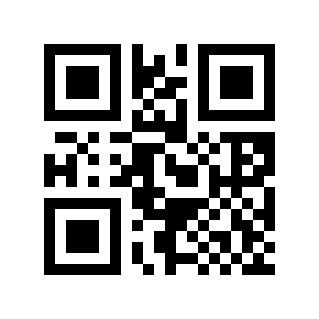
* Enable# |
Code 93 Minimum Length#
There are two methods for setting the minimum length of Code 93. The first method requires the user to generate a QR code, which tends to be set by more users and is more flexible. The second method can scan the setting barcode in this manual according to the steps.
Method one:
Code 93 Minimum length setting barcode content format: >!000163XX. XX is a setting variable, with a decimal range of 0-255.
For example: Code 93 minimum length is set to 2, then the setting barcode content is: >!0001632.
For example: Code 93 minimum length is set to 12, then the setting barcode content is: >!00016312.
Method two:
Scan the “Code 93 Minimum Length” setting barcode
Code 93 Minimum Length#
Scan the “Digital Setup Code”. For example, if the minimum length is 2 digits, scan 2; if the minimum length is 12 digits, scan 1,2
Scan the “OK” setting barcode to end the setting
Sure#
Code 93 Maximum Length#
There are two methods for setting the maximum length of Code 93. Method one requires the user to generate a QR code, which is more flexible for more users. Method two can scan the setting barcode in this manual according to the steps.
Method one:
Code 93 Maximum length setting barcode content format: >!000164XX. XX is a setting variable, with a decimal range of 0-255.
For example: Code 93 maximum length is set to 9, then the setting barcode content is: >!0001649.
For example: if the maximum length of Code 93 is set to 20, the setting barcode content is: >!00016420.
Method two:
Scan the “Code 93 Maximum Length” setting barcode
Code 93 Maximum Length#
Scan the “Digital Setup Code”. For example, if the maximum length is 9 digits, scan 9; if the maximum length is 20 digits, scan 2,0
Scan the “OK” setting barcode to end the setting
Sure#
Code 11#
Code 11 Switch#
Read the following setting barcode to enable/disable reading of Code 11 barcodes.
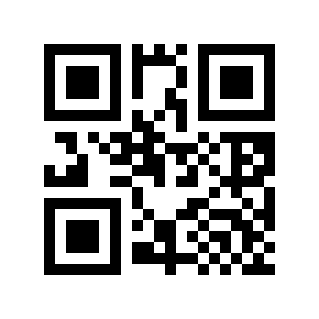
* Disable# |
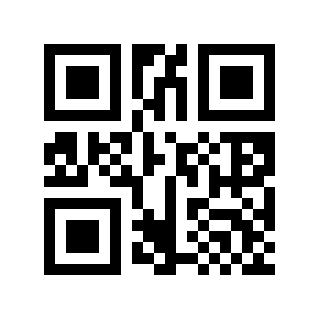
Enable# |
Code 11 Check Digit Verification#
Read the following setting barcode to set whether the Code 11 check digit is verified.
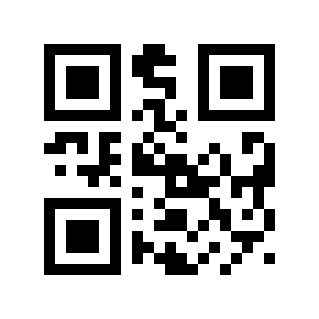
* No Verification# |
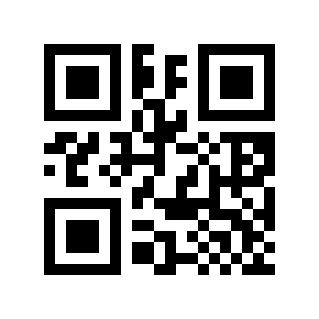
1 Bit Checksum# |
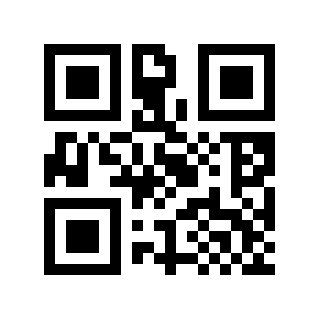
2 Digit Checksum# |
Code 11 Check Digit Transmission#
Read the following setting barcode to set whether the Code 11 check digit is transmitted.
Note
To enable transmission check digit, please enable the check digit verification function first.
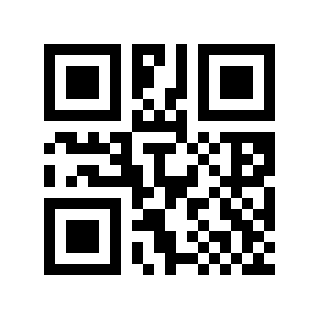
* Disable# |
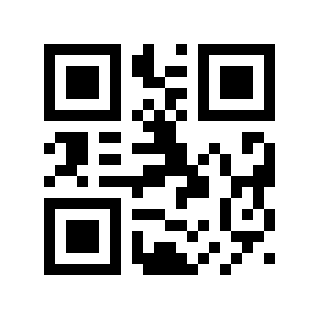
Enable# |
Code 11 Minimum Length#
There are two methods for setting the minimum length of Code 11. The first method requires the user to generate a QR code, which tends to be set by more users and is more flexible. The second method can scan the setting barcode in this manual according to the steps.
Method one:
Code 11 Minimum length setting barcode content format: >!000173XX. XX is a setting variable with a decimal range of 0-255.
For example: if the minimum length of Code 11 is set to 2, the setting barcode content is: >!0001732.
For example: if the minimum length of Code 11 is set to 12, the setting barcode content is: >!00017312.
Method two:
Scan the “Code 11 Minimum Length” setting barcode
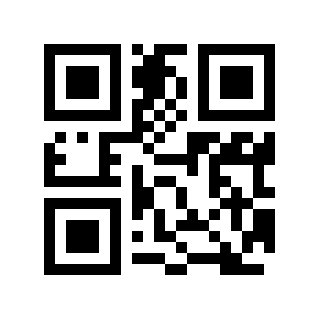
Code 11 Minimum Length#
Scan the “Digital Setup Code”. For example, if the minimum length is 2 digits, scan 2; if the minimum length is 12 digits, scan 1,2
Scan the “OK” setting barcode to end the setting
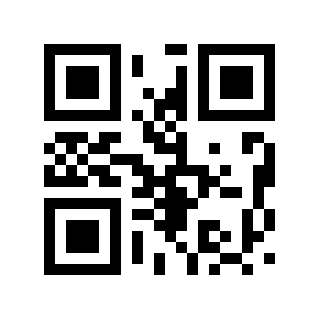
Sure#
Code 11 Maximum Length#
There are two methods for setting the maximum length of Code 11. The first method requires the user to generate a QR code, which tends to be set by more users and is more flexible. The second method can scan the setting barcode in this manual according to the steps.
Method one:
Code 11 Maximum length setting barcode content format: >!000174XX. XX is a setting variable with a decimal range of 0-255.
For example: if the maximum length of Code 11 is set to 9, the setting barcode content is: >!0001749.
For example: if the maximum length of Code 11 is set to 20, the setting barcode content is: >!00017420.
Method two:
Scan the “Code 11 Maximum Length” setting barcode
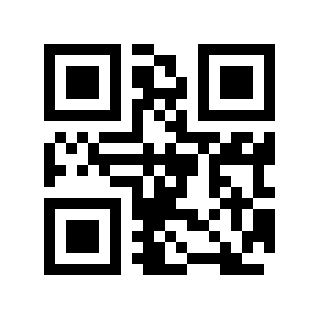
Code 11 Maximum Length#
Scan the “Digital Setup Code”. For example, if the maximum length is 9 digits, scan 9; if the maximum length is 20 digits, scan 2,0
Scan the “OK” setting barcode to end the setting
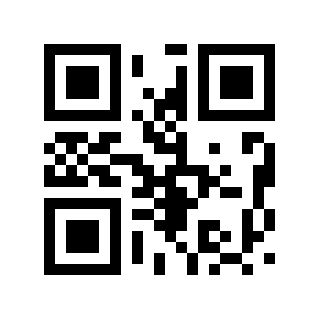
Sure#
MSI Plessey#
MSI Plessey Switch#
Read the following setting barcode to enable/disable MSI Plessey barcode reading.
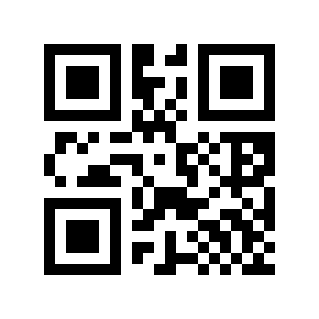
* Disable# |
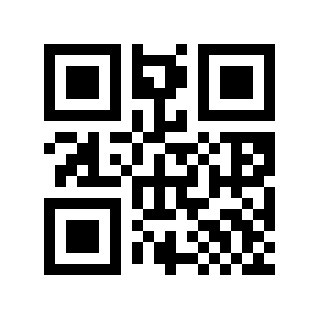
Enable# |
MSI Plessey Check Digit Verification#
Read the following setting barcode to set whether the MSI Plessey check digit is verified.
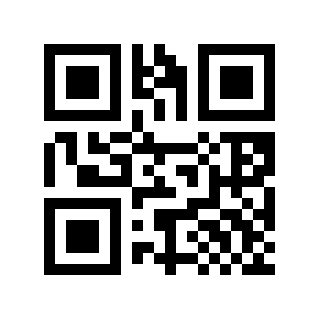
* MOD10 Single Character Check# |
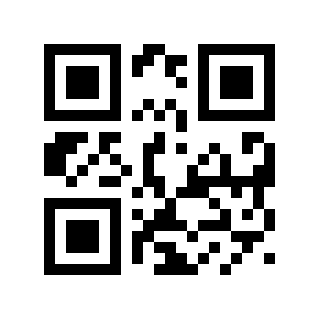
MOD10/MOD10 Double Character Check# |
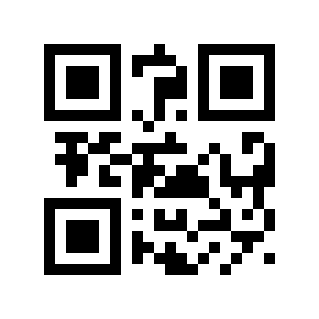
MOD10/MOD11 Double Character Check# |
MSI Plessey Check Digit Transmission#
Read the following setting barcode to set whether the MSI Plessey check digit is transmitted.
Note
To enable transmission check digit, please enable the check digit verification function first.
* Disable# |
Enable# |
MSI Plessey Minimum Length#
There are two methods for setting the minimum length of MSI Plessey. The first method requires the user to generate a QR code, which tends to be set by more users and is more flexible. The second method can scan the setting barcode in this manual according to the steps.
Method one:
MSI Plessey minimum length setting barcode content format: >!000193XX. XX is setting variable, decimal range 0-255.
For example: MSI Plessey minimum length is set to 2, then the setting barcode content is: >!0001932.
For example: MSI Plessey’s minimum length is set to 12, then the setting barcode content is: >!00019312.
Method two:
Scan the “MSI Plessey Minimum Length” setup code
MSI Plessey Minimum Length#
Scan the “Digital Setup Code”. For example, if the minimum length is 2 digits, scan 2; if the minimum length is 12 digits, scan 1,2
Scan the “OK” setting barcode to end the setting
Sure#
MSI Plessey Max Length#
There are two methods for setting the maximum length of MSI Plessey. The first method requires the user to generate a QR code, which tends to be set by more users and is more flexible. The second method can scan the setting barcode in this manual according to the steps.
Method one:
MSI Plessey maximum length setting barcode content format: >!000194XX. XX is setting variable, decimal range 0-255.
For example: if the maximum length of MSI Plessey is set to 9, then the setting barcode content is: >!0001949.
For example: if the maximum length of MSI Plessey is set to 20, the setting barcode content is: >!00019420.
Method two:
Scan the “MSI Plessey Maximum Length” setup code
MSI Plessey Max Length#
Scan the “Digital Setup Code”. For example, if the maximum length is 9 digits, scan 9; if the maximum length is 20 digits, scan 2,0
Scan the “OK” setting barcode to end the setting
Sure#
GS1 DataBar/RSS#
Read the following setting barcode to enable/disable reading of GS1 DataBar barcodes.
* Disable# |
Enable# |
Composite Code#
Read the following setting barcode to enable/disable reading of Composite Code barcodes.
Note
To enable Composite Code, please enable a separate corresponding code first.
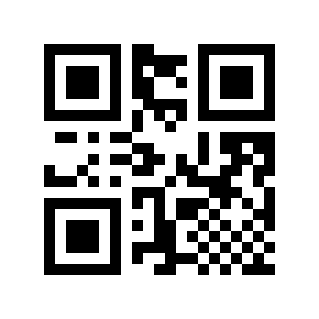
* Disable# |
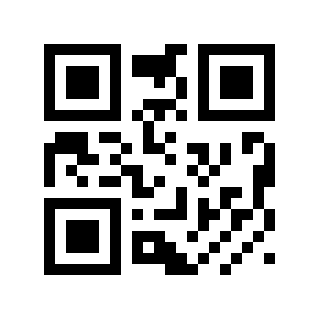
Enable# |
TELEPEN#
Read the following setting barcode to enable/disable TELEPEN barcode reading.
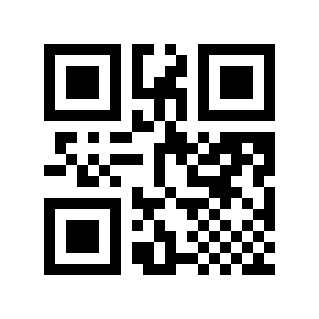
* Disable# |
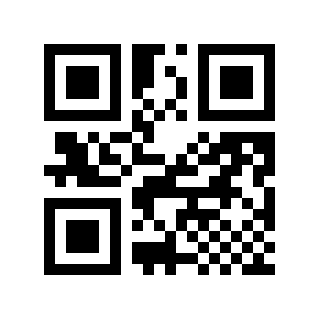
Enable# |
TRIOPTIC#
Read the following setting barcode to enable/disable TRIOPTIC barcode reading.
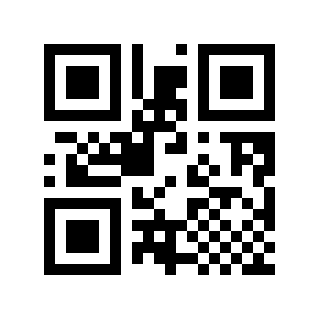
* Disable# |
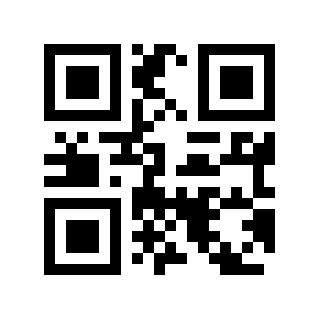
Enable# |
HONG KONG 2 OF 5/CHINA POST#
Read the following setting barcode to enable/disable reading of the HONG KONG 2 of 5 barcode.
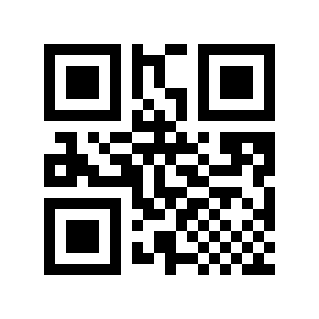
* Disable# |
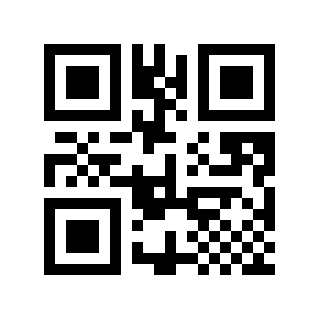
Enable# |
Korea Post/Korea Post#
Read the following setting barcode to enable/disable reading of KOREA POST/Korea Post barcodes. The barcode length must be 6 bytes.
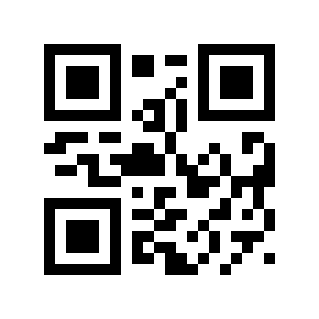
* Disable# |
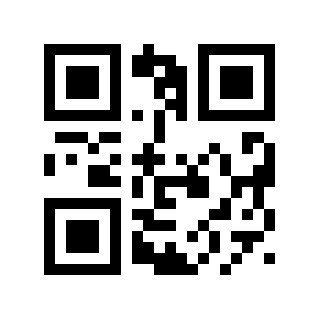
Enable# |
KOREA POST Check Digit Transmission#
Read the following setting barcode to set whether the KOREA POST check digit is transmitted.
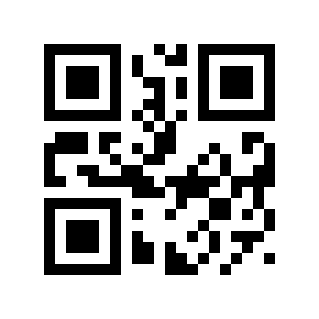
* Disable# |
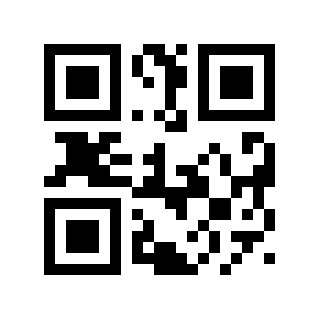
Enable# |
KOREA POST Data Reversed#
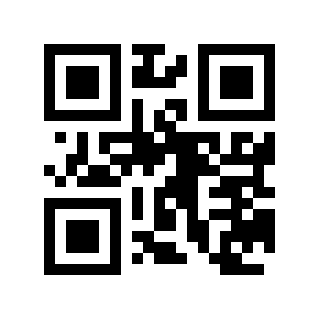
* Disable# |
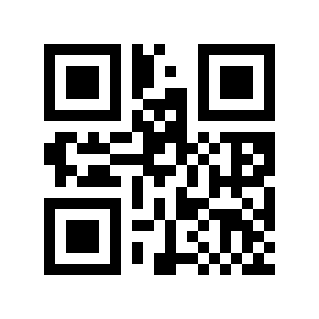
Enable# |
PDF417#
PDF417 Switch#
Read the following setting barcode to enable/disable reading of PDF417 barcodes.
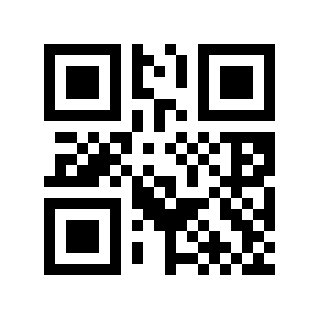
Disable# |
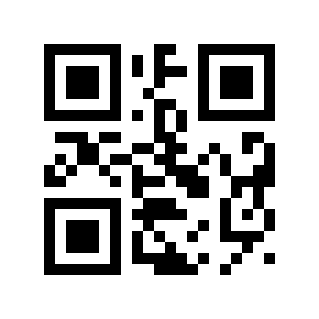
* Enable# |
PDF417 Forward And Reverse Recognition#
Read the following setting barcode to set whether the forward/reverse PDF417 code can be read.
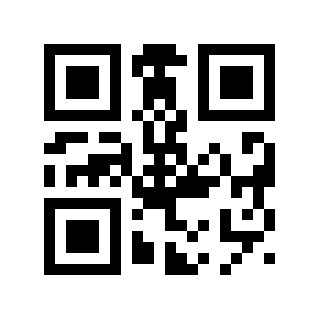
* Read Only Positive Colors# |
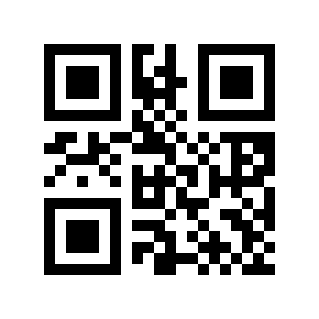
Read Only Reverse Color# |
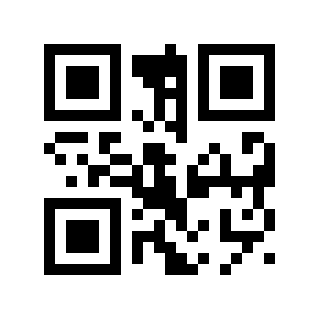
Readable In Both Positive And Negative Colors# |
QR Code#
QR Switch#
Read the following setting barcode to enable/disable reading of QR barcodes.
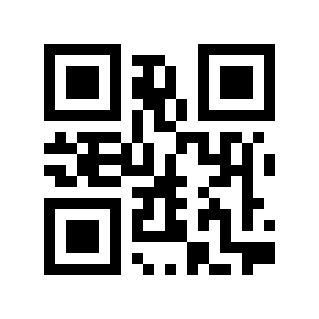
Disable# |
* Enable# |
QR Code Front And Back Color Reading#
Read the following setting barcode to set whether the front/reverse color QR Code can be read.
* Read Only Positive Colors# |
Read Only Reverse Color# |
Readable In Both Positive And Negative Colors# |
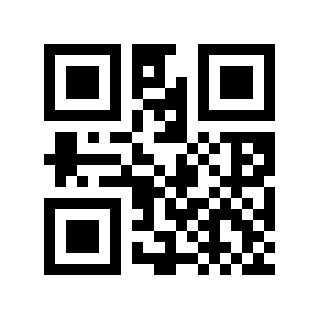
Read Only Normal Color (reverse Color Code)# |
QR Code Mirror Reading#
Read the following setting barcode to set whether the image QR Code can be read.
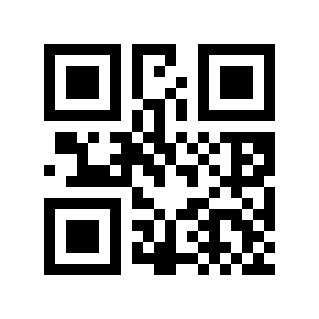
Disable# |
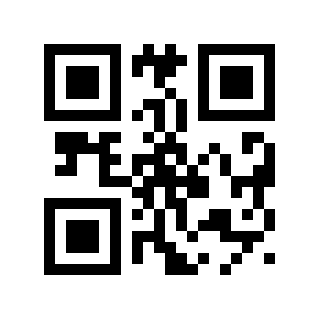
* Enable# |
Data Matrix (DM)#
Data Matrix Switch#
Read the following setting barcode to enable/disable reading of Data Matrix barcodes.
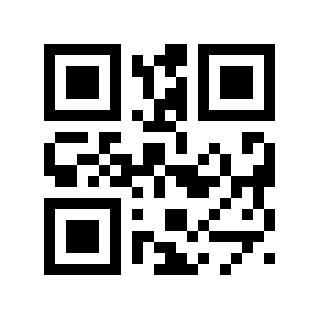
Disable# |
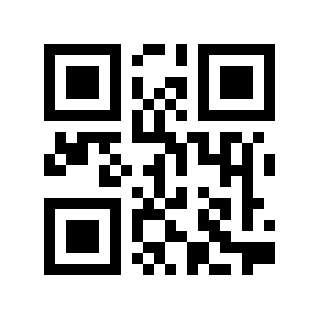
* Enable# |
Data Matrix Positive And Negative Color Reading#
Read the following setting barcode to set whether the positive/reverse color Data Matrix code can be read.
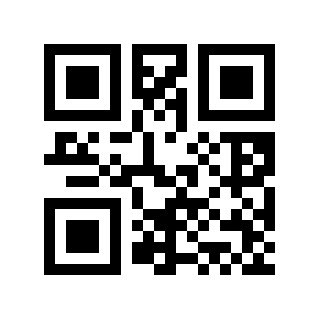
* Read Only Positive Colors# |
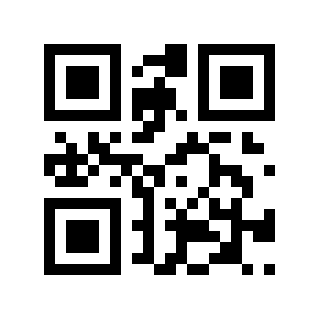
Read Only Reverse Color# |
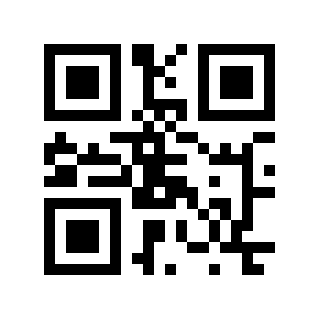
Readable In Both Positive And Negative Colors# |
Data Matrix Image Reading#
Read the following setting barcode to set whether the image Data Matrix code can be read.
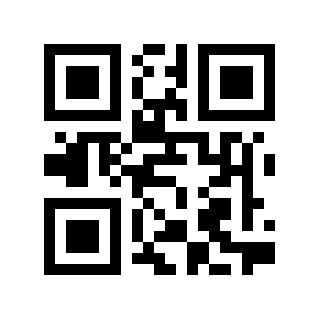
* Disable# |
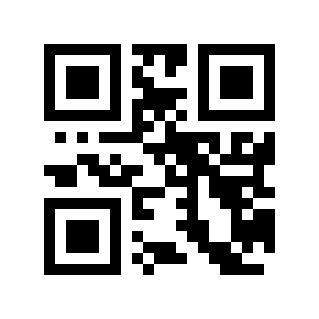
Enable# |
DM ECI Control#
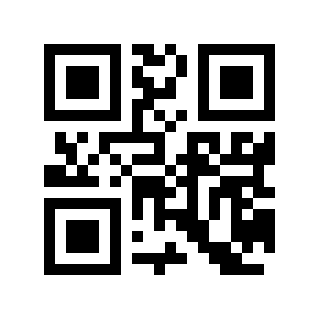
* Disable# |
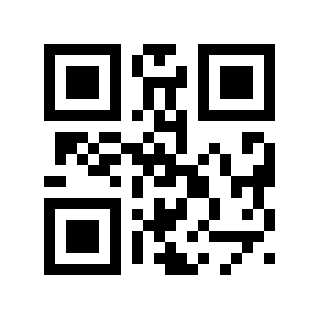
Enable# |
Aztec Code#
Read the following setting barcode to enable/disable reading of AZTEC CODE barcodes.
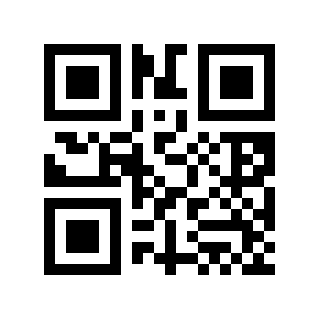
* Disable# |
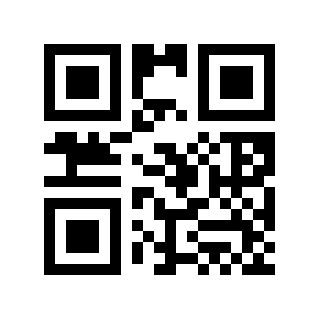
Enable# |