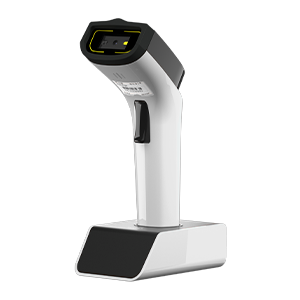
Bluetooth mode#
Note
Only applicable to scanners that support Wi-Fi + Bluetooth transmission, such as DS2800.
After scanning the “Bluetooth Mode” setting code, press the button to start the device and switch to Bluetooth transmission.
After enabling Bluetooth search on the host device and completing pairing, data can be transferred via Bluetooth.
Common default Bluetooth names are
barcode scannerorNETUM Bluetooth.
Note
The meaning of the blue indicator light is as follows:
① The blue light flashes, indicating that it is not connected. ② The blue light is always on, indicating that it is connected.
Bluetooth HID#

* Bluetooth HID#
Bluetooth SPP#

Bluetooth SPP#
Bluetooth BLE#

Bluetooth BLE#
Note
Bluetooth SPP and Bluetooth BLE are mainly used for software integration; if you need to search and pair directly in the system Bluetooth, please use Bluetooth HID.
Clear pairing information#

Clear pairing information#
Note
To re-pair with a new device, or if pairing fails, you can scan the setup code and pair again.
iOS pop up/hide keyboard#

iOS pop up/hide keyboard#
Note
You can also press the scan button twice in succession to pop up or hide the keyboard without scanning the setting code. This function only supports Bluetooth pairing scenarios under iOS systems.
Bluetooth keyboard transmission speed#

Read Bluetooth keyboard transmission speed#
High speed#

High speed#
Medium speed#

Medium speed#
Low speed#

Low speed#