Keyboard Settings#
HID Keyboard General Setting#
HID common settings
Note
The general HID mode settings in this section are applicable to USB keyboard, RF2.4G keyboard, and BT HID keyboard.
Ctrl key combination settings#
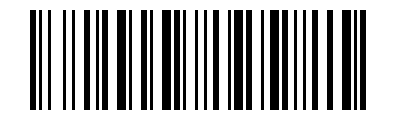
\* Combine-Key Off#
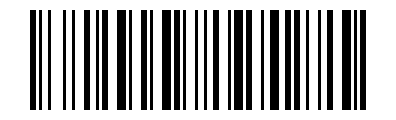
Ctrl+ Key Config1#
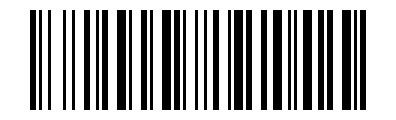
Alt+ Key Config2#
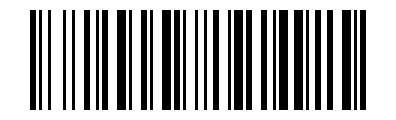
Normal-Key Config3#
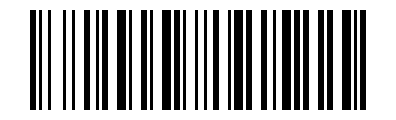
Ctrl+ Key Config4#
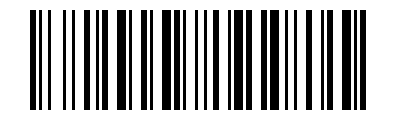
Alt+ Key Config5#
Note
only for ASCII <0x20 chars, Alt+ key only for Windows system.
Case settings#
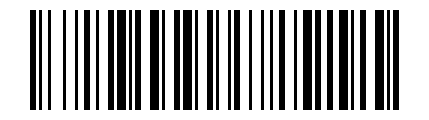
normal#
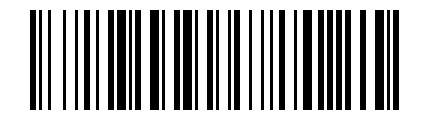
Swap case#
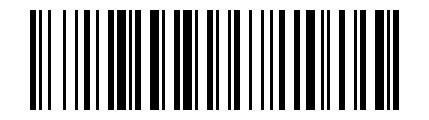
all caps#
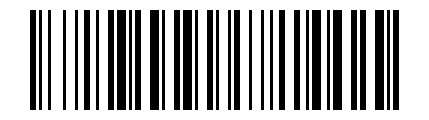
all lowercase#
*When set to ALT, TH keyboard language, the case setting does not apply.
Num Lock Settings#
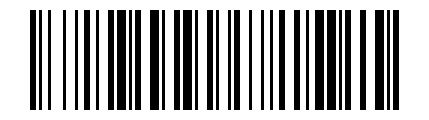
Num Lock Settings#
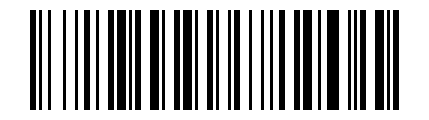
Num Lock on#
*When the receiving device is a mobile phone, you need to keep the Num Lock off setting, otherwise the numbers will not be displayed.
Enter character set settings#
Note
Applicable only to certain mod’s of 2D scanners, this setting matches the 2D module’s output character set.
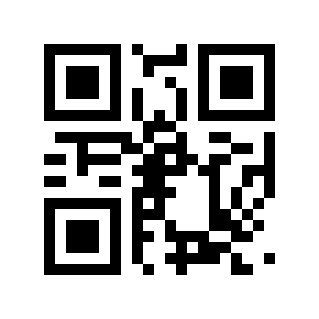
Read the current character set settings#
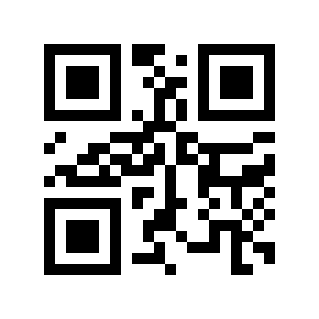
automatic#
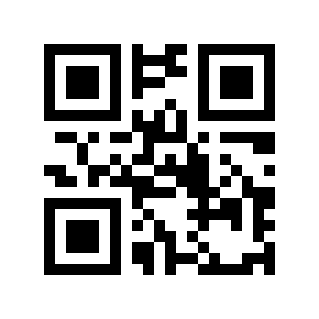
GBK / BIG5 / HANGUL / SJIS#
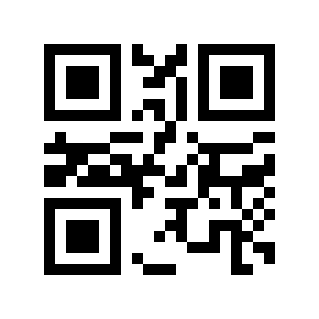
ISO/IEC 8859#
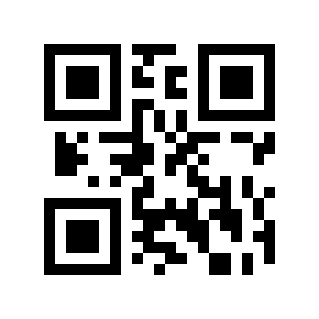
UTF8(Word)#
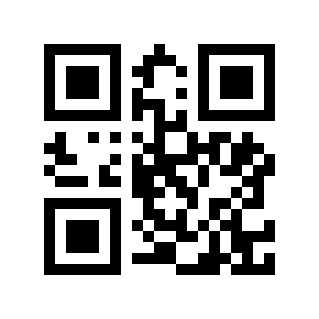
UTF8(Txt)#
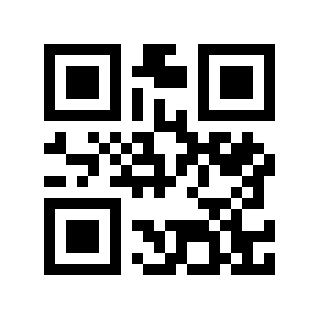
Normal mode#
illustrate:
model |
Applicable scenarios |
Code scan engine output character set |
limit |
|---|---|---|---|
Auto |
Automatically select the input character set as UTF8 or ISO/IEC 8859; Word or Txt output is based on the last UTF8 setting. |
primitive type |
none |
GBK |
Windows Notepad, Excel Chinese input. |
GBK (GB2312) or original type |
Applies to Windows systems only. |
UTF8 (Word) |
Word, QQ Chinese input. |
UTF8 or primitive type |
Applies to Windows systems only. |
ISO/IEC 8859 |
European single-byte special characters ( |
primitive type |
Languages not listed need to be added by customization. |
UTF8 (Txt) |
To input special characters in Windows Notepad, you need to install the Unicode plug-in. |
UTF8 or primitive type |
Applies to Windows systems only. |
Normal |
Multi-language special characters, suitable for characters on FR, GE, TR, PT, ES, CS, IT, UK, HU, SK keyboards. |
UTF8 or primitive type |
Languages not listed need to be added by customization. |
Receiving device selection#
Note
This section is used to set the way different receiving devices input ASCII characters (0x20 to 0x7F) and needs to be used in conjunction with Keyboard Language Settings.
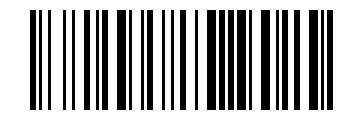
Read the current receiving device settings#
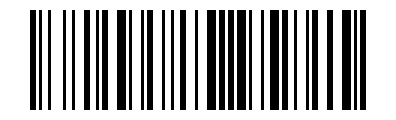
Windows device#
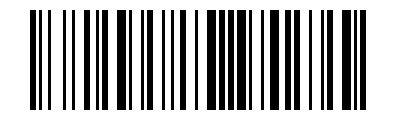
iPhone/iPad/Mac devices#
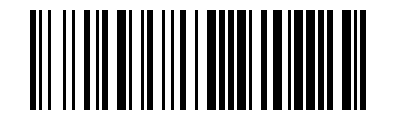
Android device#
*IOS/MAC devices are currently valid: FR, DE, TR, PT, ES, CS, IT, UK, HU, SK. Please refer to the document “MAC iphone ipad keyboard layout for barcode scanner.docx”
*It is recommended to install Google Gboard input method uniformly on Android devices. Please refer to the document “Android device keyboard layout for barcode scanner.docx”
Keyboard language settings#
See also
Keyboard language settings have been split into a separate page: Keyboard Language Settings.