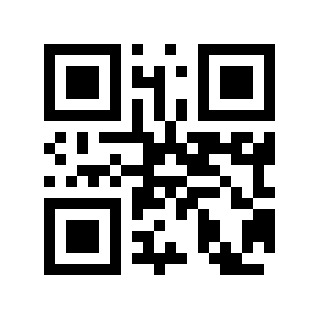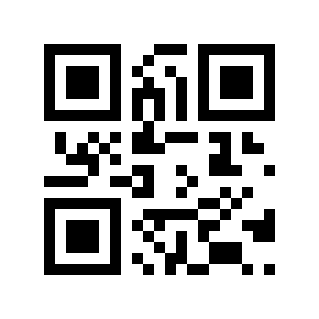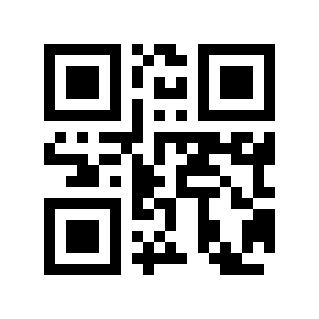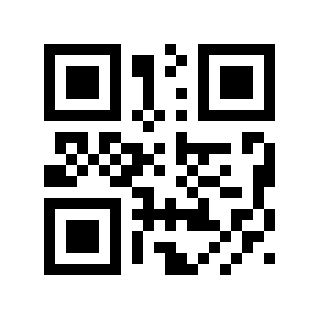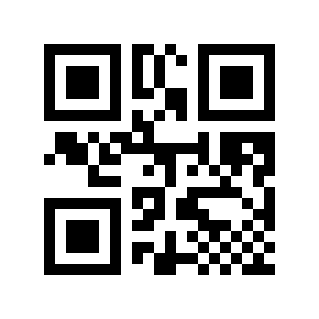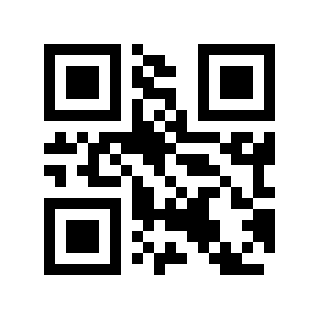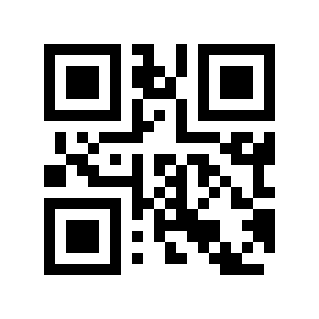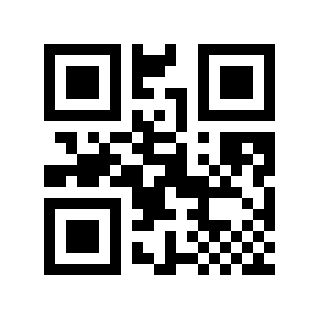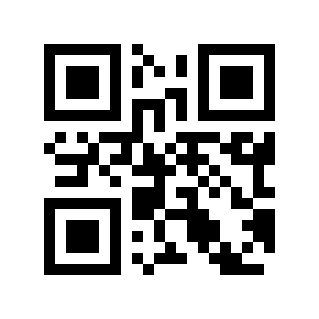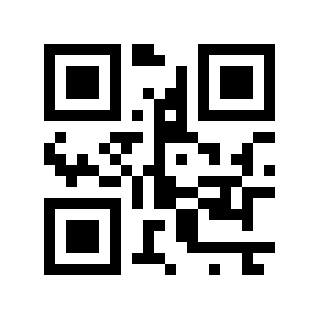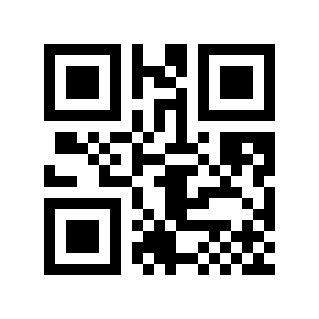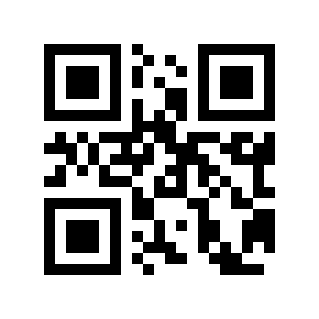
Keyboard Settings#

keyboardlayout#

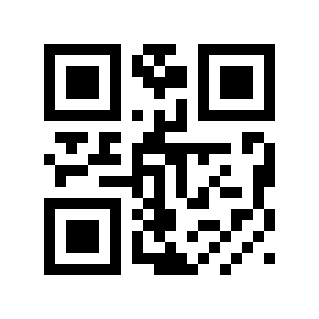
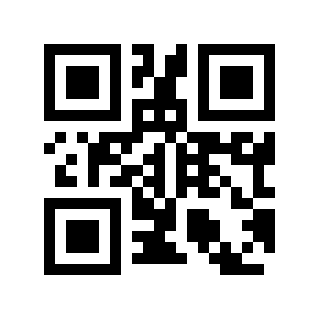
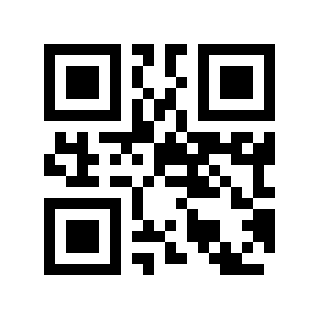
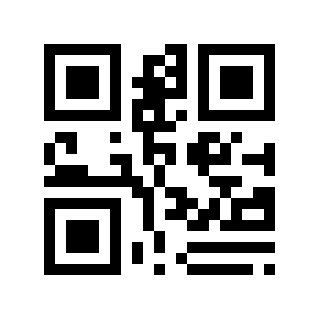
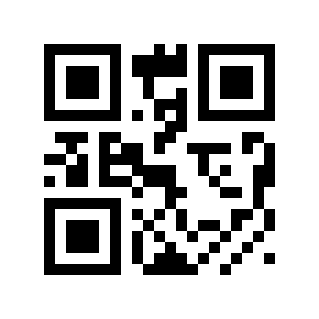
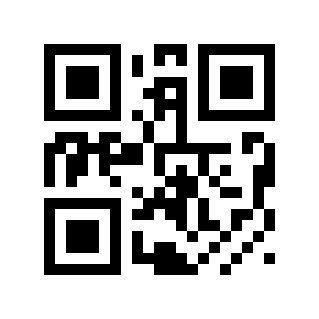
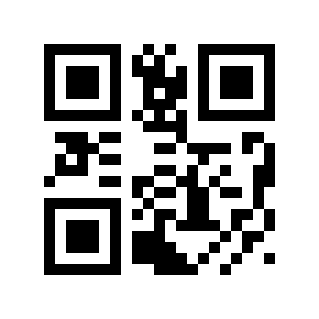
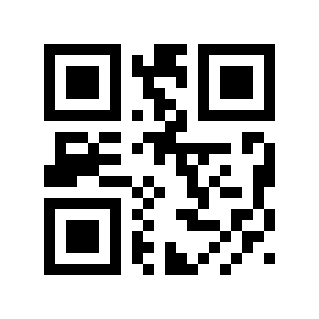
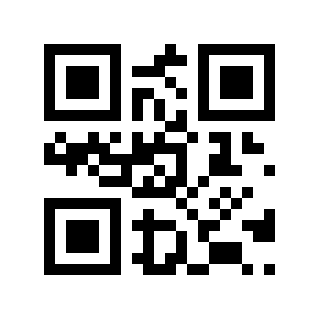
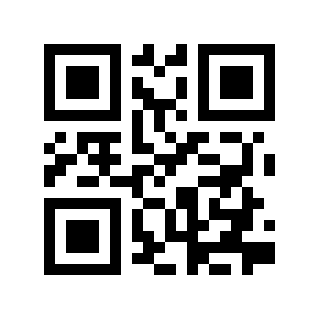
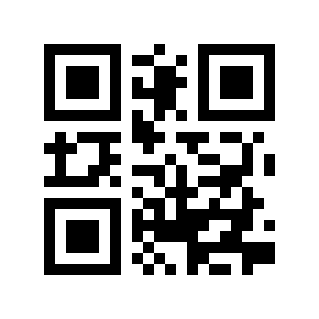
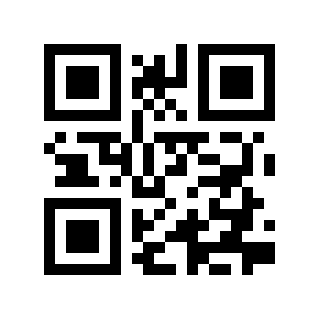
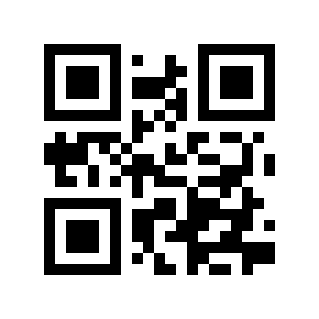
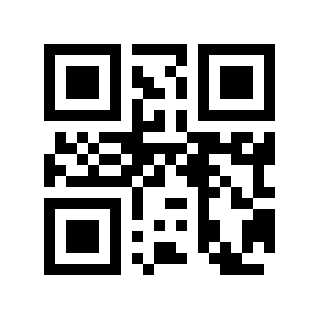
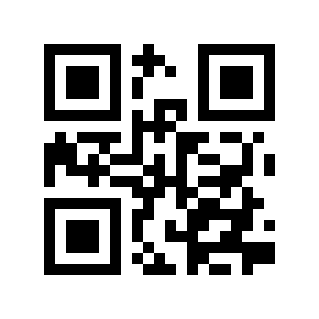
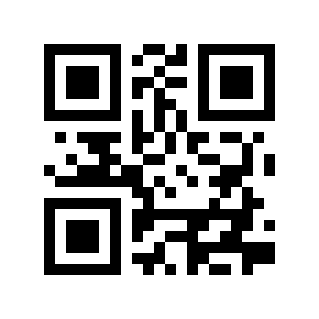
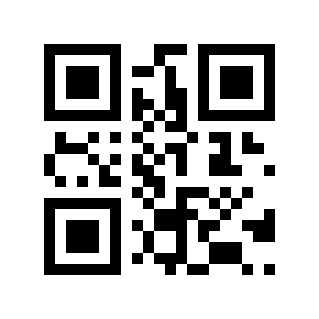
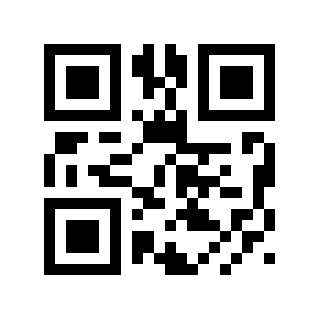
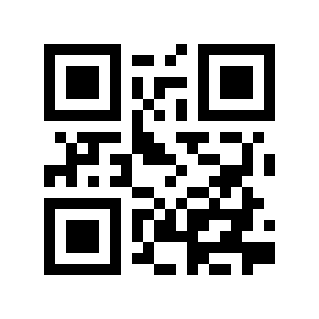
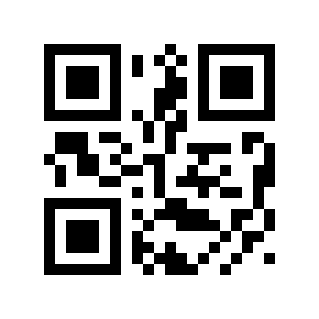
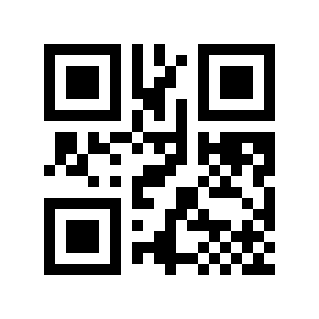
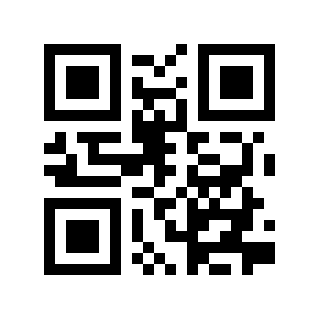
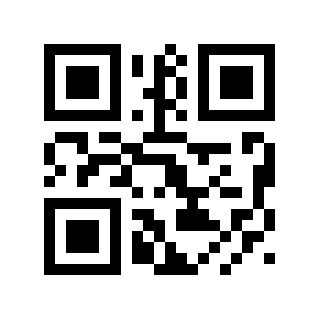
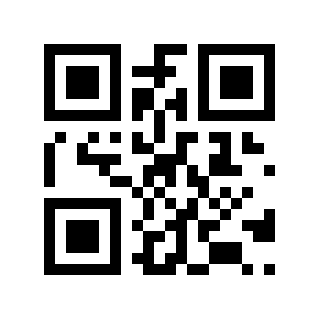
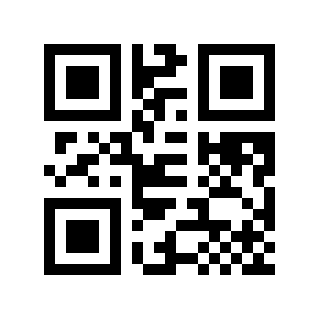
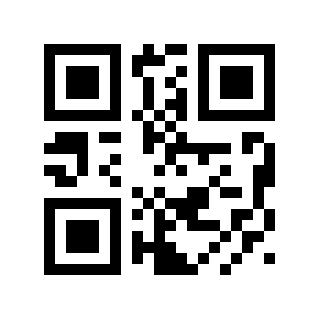
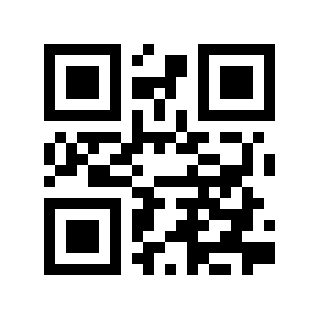
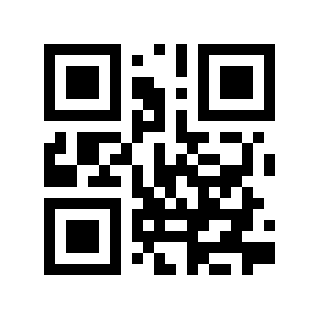
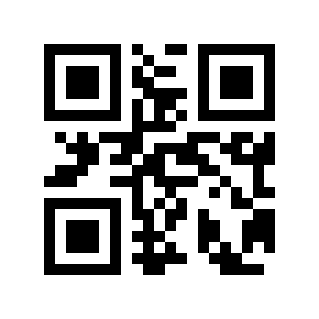
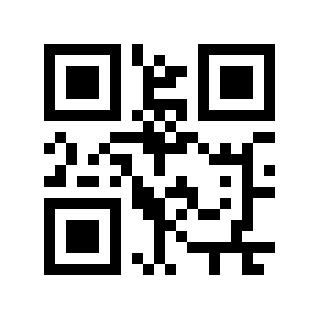
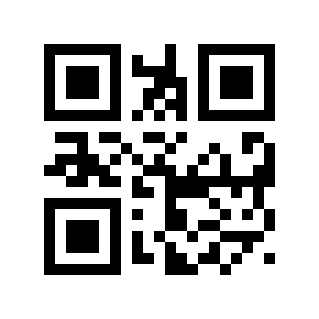
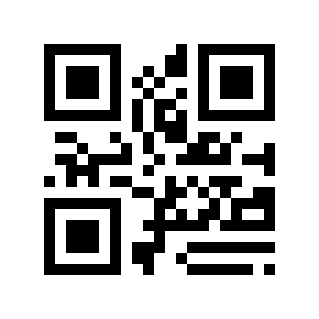
In order to allow hosts in various countries to use the device, settings can be made by reading the “keyboard” of the corresponding country.
https://cdn.scandocs.net/scanner/manual/global/_shared/_images/module-212e/00100B1.png

* USA#

https://cdn.scandocs.net/scanner/manual/global/_shared/_images/module-212e/00100B2.png

Belgium#

https://cdn.scandocs.net/scanner/manual/global/_shared/_images/module-212e/00100B3.png

Brazil, Portuguese (Brazilian ABNT)#

https://cdn.scandocs.net/scanner/manual/global/_shared/_images/module-212e/00100B6.png

Denmark#

https://cdn.scandocs.net/scanner/manual/global/_shared/_images/module-212e/00100B7.png

Finland#

https://cdn.scandocs.net/scanner/manual/global/_shared/_images/module-212e/00100B8.png

France#

https://cdn.scandocs.net/scanner/manual/global/_shared/_images/module-212e/00100B9.png

Austria, Germany#

https://cdn.scandocs.net/scanner/manual/global/_shared/_images/module-212e/00100B10.png

Greece#

https://cdn.scandocs.net/scanner/manual/global/_shared/_images/module-212e/00100B11.png

Hungary#

https://cdn.scandocs.net/scanner/manual/global/_shared/_images/module-212e/00100B13.png

Italy#

https://cdn.scandocs.net/scanner/manual/global/_shared/_images/module-212e/00100B14.png

latin america, south american countries#

https://cdn.scandocs.net/scanner/manual/global/_shared/_images/module-212e/00100B15.png

Netherlands#

https://cdn.scandocs.net/scanner/manual/global/_shared/_images/module-212e/00100B16.png

Norway#

https://cdn.scandocs.net/scanner/manual/global/_shared/_images/module-212e/00100B17.png

Poland#

https://cdn.scandocs.net/scanner/manual/global/_shared/_images/module-212e/00100B18.png

Portugal#

https://cdn.scandocs.net/scanner/manual/global/_shared/_images/module-212e/00100B19.png

Romania#

https://cdn.scandocs.net/scanner/manual/global/_shared/_images/module-212e/00100B20.png

Russia#

https://cdn.scandocs.net/scanner/manual/global/_shared/_images/module-212e/00100B21.png

Slovakia#

https://cdn.scandocs.net/scanner/manual/global/_shared/_images/module-212e/00100B22.png

Spain#

https://cdn.scandocs.net/scanner/manual/global/_shared/_images/module-212e/00100B23.png

Sweden#

https://cdn.scandocs.net/scanner/manual/global/_shared/_images/module-212e/00100B25.png

Türkiye F#

https://cdn.scandocs.net/scanner/manual/global/_shared/_images/module-212e/00100B26.png

Turkey Q#

https://cdn.scandocs.net/scanner/manual/global/_shared/_images/module-212e/00100B27.png

United Kingdom#

https://cdn.scandocs.net/scanner/manual/global/_shared/_images/module-212e/00100B28.png

Japan#

https://cdn.scandocs.net/scanner/manual/global/_shared/_images/module-212e/00100B29.png

Czech Republic#

https://cdn.scandocs.net/scanner/manual/global/_shared/_images/module-212e/00100B30.png

Thailand K#

https://cdn.scandocs.net/scanner/manual/global/_shared/_images/module-212e/00100B31.png

Ukraine#

https://cdn.scandocs.net/scanner/manual/global/_shared/_images/module-212e/00100B32.png

Arab Region 101#

https://cdn.scandocs.net/scanner/manual/global/_shared/_images/module-212e/00100B33.png

Croatia, Slovenia#

https://cdn.scandocs.net/scanner/manual/global/_shared/_images/module-212e/00100B34.png

Korea#

https://cdn.scandocs.net/scanner/manual/global/_shared/_images/module-212e/00100B35.png

Bulgaria#

https://cdn.scandocs.net/scanner/manual/global/_shared/_images/module-212e/00100B36.png

Common To Many Countries#

https://cdn.scandocs.net/scanner/manual/global/_shared/_images/module-212e/00100B37.png

Vietnam#

Keyboard Type#

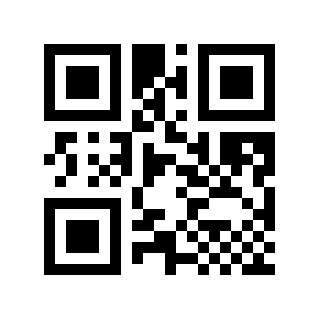
When the virtual keyboard is enabled, correct English letters, English symbols and numeric data can be output in any keyboard language mode. When using the virtual keyboard, you must ensure that the numeric keys on the small keyboard are enabled.
https://cdn.scandocs.net/scanner/manual/global/_shared/_images/module-212e/00100E0.png

* Standard Keyboard#

https://cdn.scandocs.net/scanner/manual/global/_shared/_images/module-212e/00100E1.png

Virtual Keyboard#

Keyboard Letter Case Conversion#

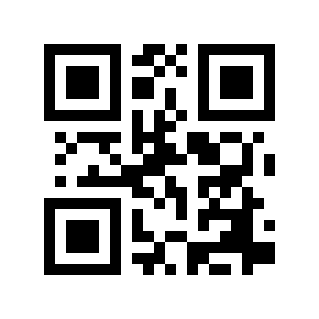
Letter conversion, when outputting barcodes with letter content, the output result can be configured to be all uppercase or all lowercase. For example, if the barcode content is: ab123dE, if you scan the “convert to uppercase” barcode, the output result is: AB123DE; if you scan the “convert to lowercase” barcode, the output result is: abc123de; by default, uppercase and lowercase are not converted.
https://cdn.scandocs.net/scanner/manual/global/_shared/_images/module-212e/00100D0.png

* Normal Output#

https://cdn.scandocs.net/scanner/manual/global/_shared/_images/module-212e/00100D1.png

ALL CAPS#

https://cdn.scandocs.net/scanner/manual/global/_shared/_images/module-212e/00100D2.png

All Lowercase#

https://cdn.scandocs.net/scanner/manual/global/_shared/_images/module-212e/00100D3.png

Opposite Case#

Keyboard Character Transmission Time Interval#

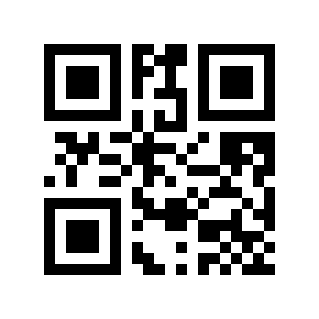
We can improve compatibility and reduce the probability of data loss by setting the transmission time interval between keyboard characters. Time interval setting range: 0-65535ms, default value: 5ms.

Scan the “Character Transmission Interval” setting barcode
https://cdn.scandocs.net/scanner/manual/global/_shared/_images/module-212e/00100C.png

Character Transmission Time Interval#

Scan the “Digital Setup Code”. For example, if the duration is 10ms, scan 1,0; if the duration is 100ms, scan 1,0,0.

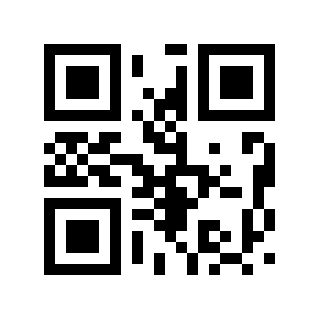
Scan the “OK” setting barcode to end the setting
https://cdn.scandocs.net/scanner/manual/global/_shared/_images/module-212e/111000.png

Sure#

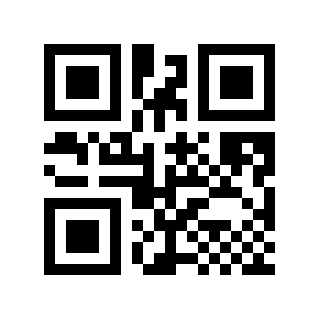
Quick Setting Of Keyboard Character Transmission Time Interval#
https://cdn.scandocs.net/scanner/manual/global/_shared/_images/module-212e/00100C0.png

0 ms#

https://cdn.scandocs.net/scanner/manual/global/_shared/_images/module-212e/00100C5.png

*5ms#

https://cdn.scandocs.net/scanner/manual/global/_shared/_images/module-212e/00100C10.png

10 ms#

https://cdn.scandocs.net/scanner/manual/global/_shared/_images/module-212e/00100C20.png

20ms#

https://cdn.scandocs.net/scanner/manual/global/_shared/_images/module-212e/00100C30.png

30ms#

https://cdn.scandocs.net/scanner/manual/global/_shared/_images/module-212e/00100C50.png

50 ms#

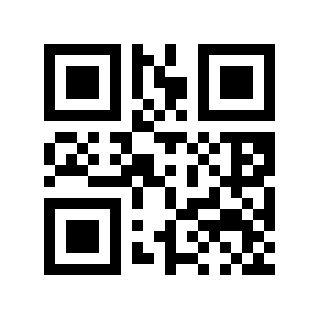
Keyboard Control Character Output Mode#

Control character (0x00-0x1F) output mode selection in ASCII code

Output function keys: Control characters are used as custom function keys. For specific functions, see ASCII Code Comparison Table.

Output CTRL key combination: CTRL key combination mode outputs control characters. For specific functions, see ASCII Code Comparison Table.

Output ALT+numeric keys: supports full control character output in Chinese environment. For specific functions, see ASCII Code Comparison Table.
https://cdn.scandocs.net/scanner/manual/global/_shared/_images/module-212e/0010310.png

* Output Function Keys#

https://cdn.scandocs.net/scanner/manual/global/_shared/_images/module-212e/0010311.png

Output CTRL Key Combination#

https://cdn.scandocs.net/scanner/manual/global/_shared/_images/module-212e/0010312.png

Output ALT+numeric Keys#